# CLOUDEX Drive

# How to use "Cloudex Drive"

<div class="relative basis-auto flex-col -mb-(--composer-overlap-px) pb-(--composer-overlap-px) [--composer-overlap-px:28px] grow flex" id="bkmrk-1.-installing-the-dr"><div class="flex flex-col text-sm"><div class="qMYqUG_convSearchResultHighlightRoot"><div><section class="text-token-text-primary w-full focus:outline-none has-data-writing-block:pointer-events-none [&:has([data-writing-block])>*]:pointer-events-auto R6Vx5W_threadScrollVars scroll-mb-[calc(var(--scroll-root-safe-area-inset-bottom,0px)+var(--thread-response-height))] scroll-mt-[calc(var(--header-height)+min(200px,max(70px,20svh)))]" dir="auto">##### 1. Installing the Driver App

Search for the **"Cloudex Drive"** app in the [**Google Play Store**](https://play.google.com/store/apps/details?id=eu.cloudex.drive) (Android) or the [**App Store**](https://apps.apple.com/lv/app/cloudex-drive/id6479022638) (iPhone).

##### 2. Logging In to the App

<div class="text-base my-auto mx-auto pb-10 [--thread-content-margin:var(--thread-content-margin-xs,calc(var(--spacing)*4))] @w-sm/main:[--thread-content-margin:var(--thread-content-margin-sm,calc(var(--spacing)*6))] @w-lg/main:[--thread-content-margin:var(--thread-content-margin-lg,calc(var(--spacing)*16))] px-(--thread-content-margin)"><div class="[--thread-content-max-width:40rem] @w-lg/main:[--thread-content-max-width:48rem] mx-auto max-w-(--thread-content-max-width) flex-1 group/turn-messages focus-visible:outline-hidden relative flex w-full min-w-0 flex-col agent-turn"><div class="flex max-w-full flex-col gap-4 grow"><div class="min-h-8 text-message relative flex w-full flex-col items-end gap-2 text-start break-words whitespace-normal outline-none keyboard-focused:focus-ring [.text-message+&]:mt-1" dir="auto" tabindex="0"><div class="flex w-full flex-col gap-1 empty:hidden"><div class="markdown prose dark:prose-invert wrap-break-word w-full light markdown-new-styling">1. The driver enters the vehicle's license plate number.
2. Enter the password provided by the manager in the vehicle's profile.

</div></div></div></div></div></div>[![image.png](https://help.cloudex.app/uploads/images/gallery/2026-07/scaled-1680-/Ft7image.png)](https://help.cloudex.app/uploads/images/gallery/2026-07/Ft7image.png)

  
##### 3. Working with an Active Trip

**1. Additional Functions**

- Refresh list
- Open trips
- Settings
- Log out

**2. If necessary, call the trip manager or the responsible contact person.**

**3. Loading Location**

- Information about the current loading location
- Date and GPS coordinates
- Phone number of the contact person

**4. Delivery Location**

- Information about the current loading location
- Date and GPS coordinates
- Phone number of the contact person

[![image.png](https://help.cloudex.app/uploads/images/gallery/2026-07/scaled-1680-/ekVimage.png)](https://help.cloudex.app/uploads/images/gallery/2026-07/ekVimage.png)

##### 4. Adding Files

<div class="text-base my-auto mx-auto pb-10 [--thread-content-margin:var(--thread-content-margin-xs,calc(var(--spacing)*4))] @w-sm/main:[--thread-content-margin:var(--thread-content-margin-sm,calc(var(--spacing)*6))] @w-lg/main:[--thread-content-margin:var(--thread-content-margin-lg,calc(var(--spacing)*16))] px-(--thread-content-margin)"><div class="[--thread-content-max-width:40rem] @w-lg/main:[--thread-content-max-width:48rem] mx-auto max-w-(--thread-content-max-width) flex-1 group/turn-messages focus-visible:outline-hidden relative flex w-full min-w-0 flex-col agent-turn"><div class="flex max-w-full flex-col gap-4 grow"><div class="min-h-8 text-message relative flex w-full flex-col items-end gap-2 text-start break-words whitespace-normal outline-none keyboard-focused:focus-ring [.text-message+&]:mt-1" dir="auto" tabindex="0"><div class="flex w-full flex-col gap-1 empty:hidden"><div class="markdown prose dark:prose-invert wrap-break-word w-full light markdown-new-styling">1. Attach a **CMR document** by taking a photo or uploading it from your phone's gallery.
2. Attach additional photos by selecting them from your phone's gallery or taking new ones with the camera.
3. Press the **"Confirm Loading"** button to confirm that the cargo has been loaded.

</div></div></div></div></div></div>[![image.png](https://help.cloudex.app/uploads/images/gallery/2026-07/scaled-1680-/QYpimage.png)](https://help.cloudex.app/uploads/images/gallery/2026-07/QYpimage.png)

##### 5. Confirming Cargo Loading / Submit

<div class="text-base my-auto mx-auto pb-10 [--thread-content-margin:var(--thread-content-margin-xs,calc(var(--spacing)*4))] @w-sm/main:[--thread-content-margin:var(--thread-content-margin-sm,calc(var(--spacing)*6))] @w-lg/main:[--thread-content-margin:var(--thread-content-margin-lg,calc(var(--spacing)*16))] px-(--thread-content-margin)"><div class="[--thread-content-max-width:40rem] @w-lg/main:[--thread-content-max-width:48rem] mx-auto max-w-(--thread-content-max-width) flex-1 group/turn-messages focus-visible:outline-hidden relative flex w-full min-w-0 flex-col agent-turn"><div class="flex max-w-full flex-col gap-4 grow"><div class="min-h-8 text-message relative flex w-full flex-col items-end gap-2 text-start break-words whitespace-normal outline-none keyboard-focused:focus-ring [.text-message+&]:mt-1" dir="auto" tabindex="0"><div class="flex w-full flex-col gap-1 empty:hidden"><div class="markdown prose dark:prose-invert wrap-break-word w-full light markdown-new-styling">1. Complete the required fields before submitting the status.
2. Press the **"Submit"** button.

</div></div></div></div></div></div>[![image.png](https://help.cloudex.app/uploads/images/gallery/2026-07/scaled-1680-/0o4image.png)](https://help.cloudex.app/uploads/images/gallery/2026-07/0o4image.png)

</section></div></div></div></div><div class="sticky bottom-0 z-10 group/thread-bottom-container relative isolate w-full basis-auto has-data-has-thread-error:pt-2 has-data-has-thread-error:[box-shadow:var(--sharp-edge-bottom-shadow)] md:border-transparent md:pt-0 dark:border-white/20 md:dark:border-transparent print:hidden content-fade single-line flex flex-col" id="bkmrk-"><div class="relative mx-auto h-0">  
</div><div id="bkmrk--1"><div><div class="text-base mx-auto [--thread-content-margin:var(--thread-content-margin-xs,calc(var(--spacing)*4))] @w-sm/main:[--thread-content-margin:var(--thread-content-margin-sm,calc(var(--spacing)*6))] @w-lg/main:[--thread-content-margin:var(--thread-content-margin-lg,calc(var(--spacing)*16))] px-(--thread-content-margin)"><div><div class="[--thread-content-max-width:40rem] @w-lg/main:[--thread-content-max-width:48rem] mx-auto max-w-(--thread-content-max-width) flex-1 mb-(--thread-component-gap,1rem)"><div class="w-full"><div class="flex justify-center empty:hidden">  
</div></div></div></div></div></div></div></div>

# How to use Driver Web App

<div id="bkmrk-1.-open-the-link-ope"><section class="text-token-text-primary w-full focus:outline-none has-data-writing-block:pointer-events-none [&:has([data-writing-block])>*]:pointer-events-auto R6Vx5W_threadScrollVars scroll-mb-[calc(var(--scroll-root-safe-area-inset-bottom,0px)+var(--thread-response-height))] scroll-mt-[calc(var(--header-height)+min(200px,max(70px,20svh)))]" dir="auto">##### 1. Open the Link

Open the link you received from your manager via **WhatsApp**.

[![image.png](https://help.cloudex.app/uploads/images/gallery/2026-07/scaled-1680-/VKTimage.png)](https://help.cloudex.app/uploads/images/gallery/2026-07/VKTimage.png)

##### 2. Working with an Active Trip

*[![image.png](https://help.cloudex.app/uploads/images/gallery/2026-07/scaled-1680-/Mm5image.png)](https://help.cloudex.app/uploads/images/gallery/2026-07/Mm5image.png)*

##### 3. Confirming Cargo Loading

<div class="text-base my-auto mx-auto pb-10 [--thread-content-margin:var(--thread-content-margin-xs,calc(var(--spacing)*4))] @w-sm/main:[--thread-content-margin:var(--thread-content-margin-sm,calc(var(--spacing)*6))] @w-lg/main:[--thread-content-margin:var(--thread-content-margin-lg,calc(var(--spacing)*16))] px-(--thread-content-margin)"><div class="[--thread-content-max-width:40rem] @w-lg/main:[--thread-content-max-width:48rem] mx-auto max-w-(--thread-content-max-width) flex-1 group/turn-messages focus-visible:outline-hidden relative flex w-full min-w-0 flex-col agent-turn"><div class="flex max-w-full flex-col gap-4 grow"><div class="min-h-8 text-message relative flex w-full flex-col items-end gap-2 text-start break-words whitespace-normal outline-none keyboard-focused:focus-ring [.text-message+&]:mt-1" dir="auto" tabindex="0"><div class="flex w-full flex-col gap-1 empty:hidden"><div class="markdown prose dark:prose-invert wrap-break-word w-full light markdown-new-styling">1. Navigation options
2. Pickup / Loading location
3. Order information
4. Add a photo
5. Upload the **CMR** document
6. Click **"Confirm Loading"** to confirm that the cargo has been loaded.

</div></div></div></div></div></div>[![image.png](https://help.cloudex.app/uploads/images/gallery/2026-07/scaled-1680-/320image.png)](https://help.cloudex.app/uploads/images/gallery/2026-07/320image.png)

  
</section></div>

# How to clear Cache & Storage

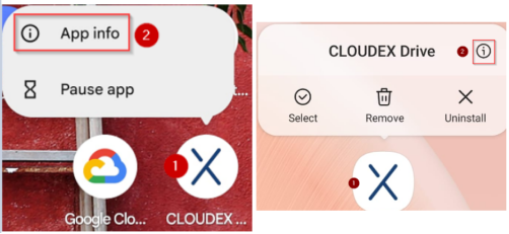
(1) Finger press the "CLOUDEX drive" icon for 1 second (2) and then select "App info"

Options for how it could look

[![image.png](https://help.cloudex.app/uploads/images/gallery/2026-07/scaled-1680-/IW0image.png)](https://help.cloudex.app/uploads/images/gallery/2026-07/IW0image.png)
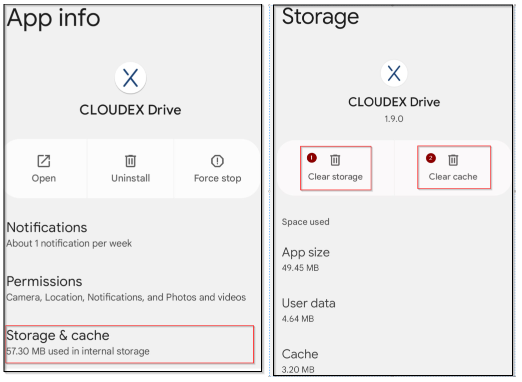
(1) Click on storage and cache

Options for how it could look

(2) Clear storage (2) Clear cache

[![image.png](https://help.cloudex.app/uploads/images/gallery/2026-07/scaled-1680-/vFSimage.png)](https://help.cloudex.app/uploads/images/gallery/2026-07/vFSimage.png)
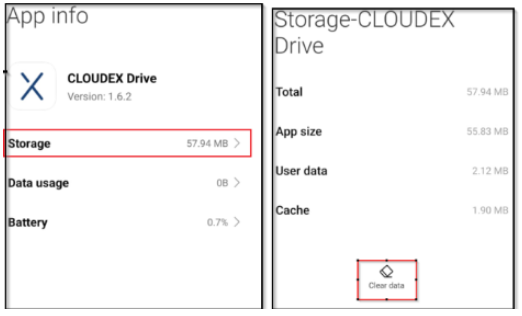
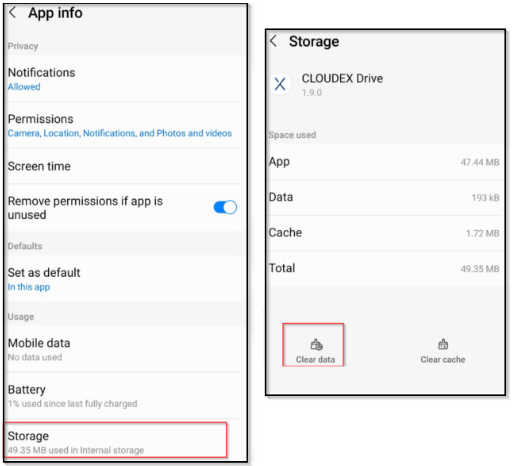
(1) Click on storage

(2) Click clear data

[![image.png](https://help.cloudex.app/uploads/images/gallery/2026-07/scaled-1680-/neQimage.png)](https://help.cloudex.app/uploads/images/gallery/2026-07/neQimage.png)
[![image.png](https://help.cloudex.app/uploads/images/gallery/2026-07/scaled-1680-/ekFimage.png)](https://help.cloudex.app/uploads/images/gallery/2026-07/ekFimage.png)
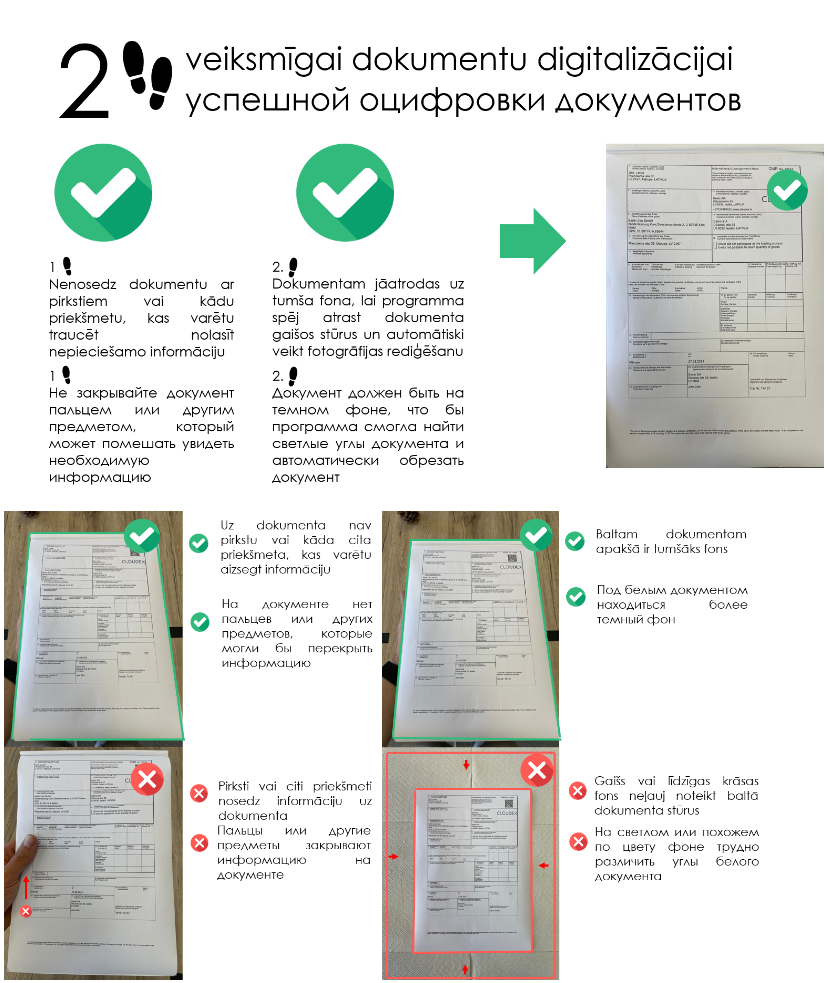
# How to take picture of Documents

[![image.png](https://help.cloudex.app/uploads/images/gallery/2026-07/scaled-1680-/EiLimage.png)](https://help.cloudex.app/uploads/images/gallery/2026-07/EiLimage.png)
# How to Upgrade Cloudex Drive to the Latest Version

1. **Open the Google Play Store. **[![image.png](https://help.cloudex.app/uploads/images/gallery/2026-07/scaled-1680-/y51image.png)](https://help.cloudex.app/uploads/images/gallery/2026-07/y51image.png)****  
    Find and open the **Google Play Store**  app from your app list.
2. **Search for Cloudex Drive.**  
    In the search bar at the top, type **"Cloudex Drive"** and press **Search** or **Enter**.  
    [![image.png](https://help.cloudex.app/uploads/images/gallery/2026-07/scaled-1680-/dJUimage.png)](https://help.cloudex.app/uploads/images/gallery/2026-07/dJUimage.png)

3. **Select the Cloudex Drive app.**  
    [![image.png](https://help.cloudex.app/uploads/images/gallery/2026-07/scaled-1680-/1Cximage.png)](https://help.cloudex.app/uploads/images/gallery/2026-07/1Cximage.png)

4. **Check for available updates.**  
    If an update is available, you will see an **Update** button instead of the **Open** button. Tap **Update** to begin the update process.
5. **Wait for the update to download and install.**  
    The Google Play Store will automatically download and install the latest version. You can monitor the progress in the Play Store.
6. **Open the updated app.**  
    Once the update is complete, tap **Open** to launch the latest version of **Cloudex Drive**.