This method clears the cache only for the current page, which is useful for developers and testing purposes.
#### Clearing Cache and Cookies for the Entire Browser 1. Open the browser menu (the three dots in the upper-right corner). 2. Go to **Settings > Privacy and Security > Clear Browsing Data**. 3. Select **"Cookies and other site data"** and **"Cached images and files"**., 4. Click **"Clear Data"**. [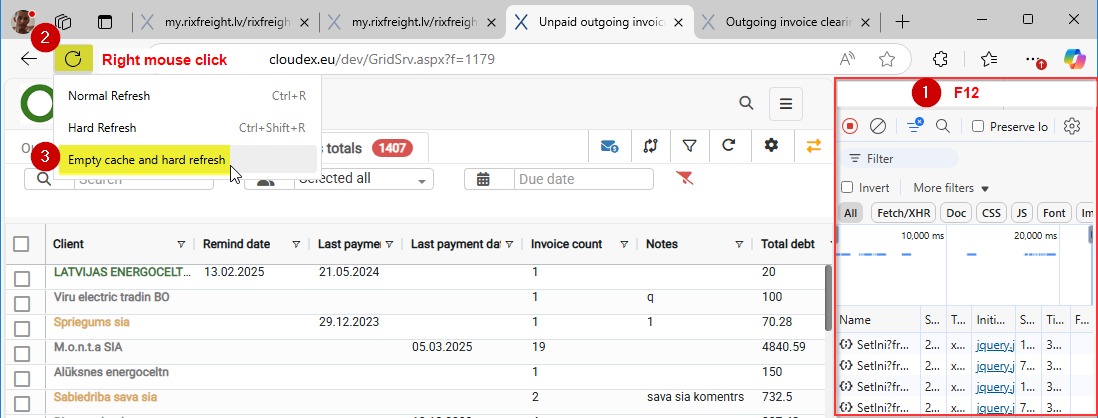](https://doc.ozols.lv/uploads/images/gallery/2025-05/whatsapp.jpeg)3 # How to replace and delete a partner? **1) Open the “Delete” window** This window appears when you try to delete a company that is used in existing records. **2) Review where the data is used** In the top table, you’ll see all places where the company is linked (e.g., invoices, purchases, shipments, etc.). **3) Find the field “Record ‘Clean R’ data move to”** This is a dropdown list where you must select the target company. **4) Select a company from the list** - Click on the dropdown field - Start typing the company name (e.g., *XXXXX*) - Choose the correct company from the suggestions **5) Double-check your selection** All data will be transferred to this company, and this action cannot be undone. **6) Click “Replace and delete”** Data will be moved to the selected company The original company will be deleted [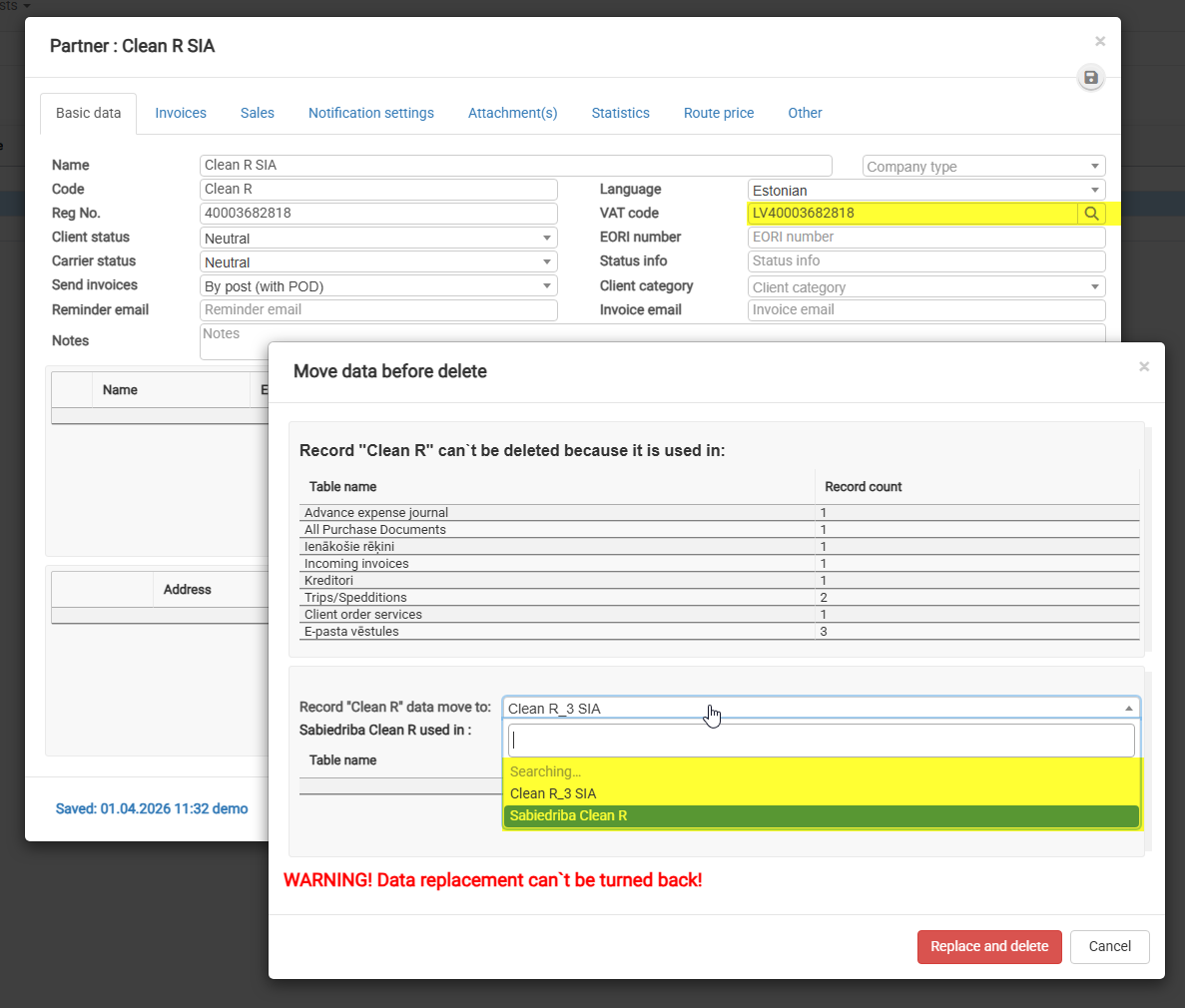](https://doc.ozols.lv/uploads/images/gallery/2026-04/datamove.png) # How to delete duplicate or unused partners? ##### Purpose Use this guide when you need to delete an unused partner or remove a duplicate partner in CLOUDEX TMS. This article explains: \- when a partner can be deleted immediately; \- when partner data must be moved to another duplicate partner before deletion; \- why the replacement partner must have the same VAT code or registration number; \- what to do if no replacement partner is available in the selection list. If partner is only used as Sender, Consignee or Loading/Delivery company then open partner and press button Delete If Partner is used as client/customer, carrier/suppliers then **it is possible to delete duplicate partners only if they have the same VAT or Registration numbers**. Open: Lists → Partners → All partners Use the search field to search by: partner name; VAT code; registration number; ... [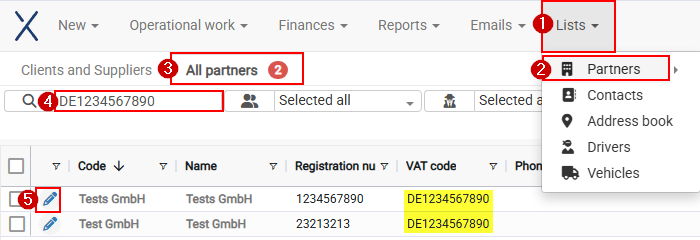](https://help.cloudex.app/uploads/images/gallery/2026-07/image.png) Open one of 2 duplicate partners (5) Press **Delete** button [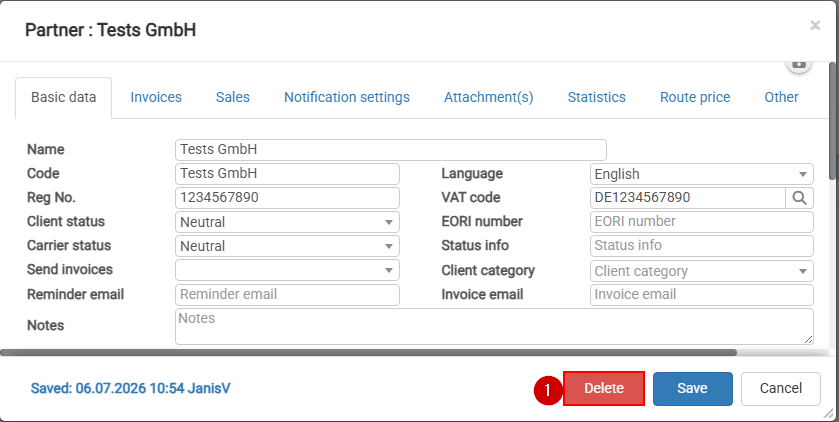](https://help.cloudex.app/uploads/images/gallery/2026-07/swSimage.png) If partner is used in some tables then will appear window where you will be able to choose duplicate Partner with the same VAT or registration number Select the duplicate partner that will receive the data, then click Replace and delete. [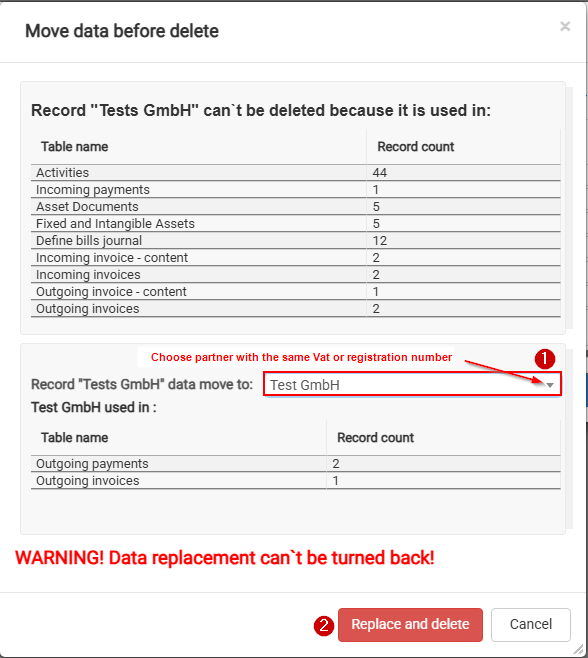](https://help.cloudex.app/uploads/images/gallery/2026-07/zl9image.png)If you can't choose partner to which move data, then first to duplicate Partner enter the same VAT or registration number
**After clicking "Replace and delete"**: \- data from the deleted partner is moved to the selected replacement partner; \- the duplicate partner is deleted; \- historical records remain connected to the correct partner. # How to reset a form table 1. Press  it will open additional settings. 2. Press  it will reset table columns to default state. [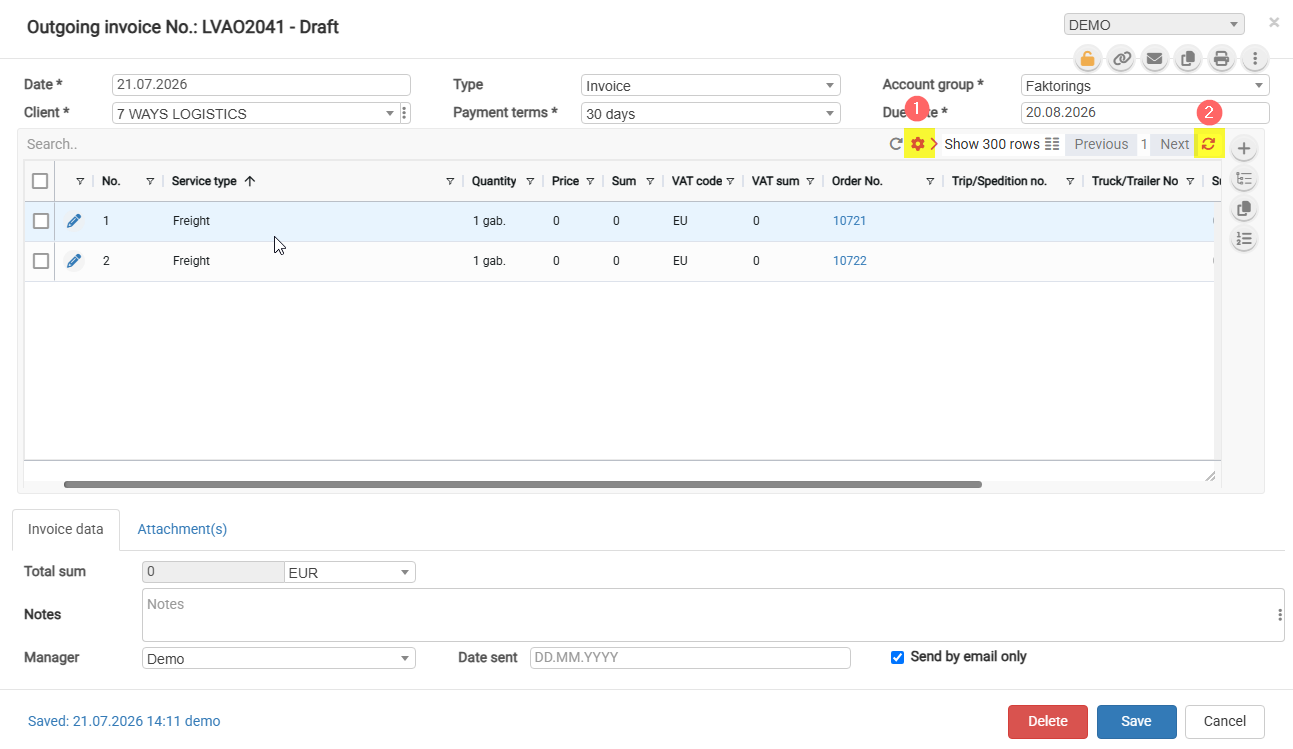](https://help.cloudex.app/uploads/images/gallery/2026-07/KvSimage.png) # How do I unlock a locked order? When it is necessary to unlock an order, the following conditions must be met: the user must have the appropriate permissions to do so, and the following steps must be performed: trip must be unlocked, then the order must be saved and reopened. After that, the information in the order can be edited. 1. Click on the trip **number** to open the Trip/Spedition form. 2. Click the **Lock** icon to unlock and open the trip. 3. **Close and reopen the Order**. You can then change the order information. [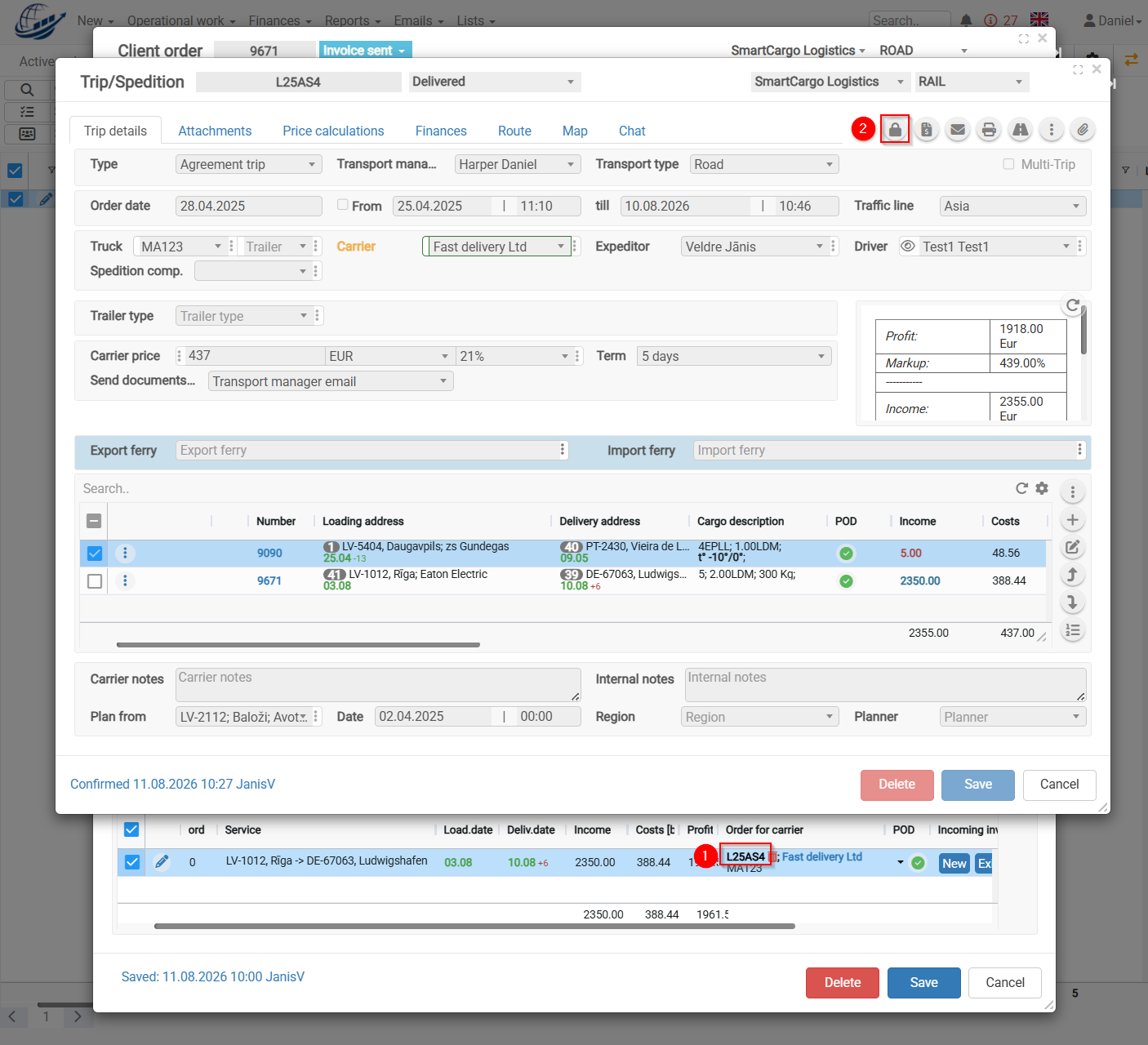](https://help.cloudex.app/uploads/images/gallery/2026-08/Nb2image.png) Additional:There is a configuration option that provides additional security. Once the invoice has been generated, all three locking steps are activated.
To make changes, you need to **unlock the invoice, unlock the trip, close and reopen the Order**.