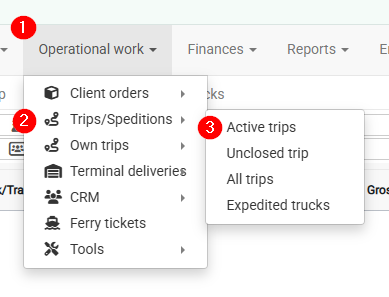
Required navigation sequence: **Operational work → Trips / Speditions**. This opens the planning view.
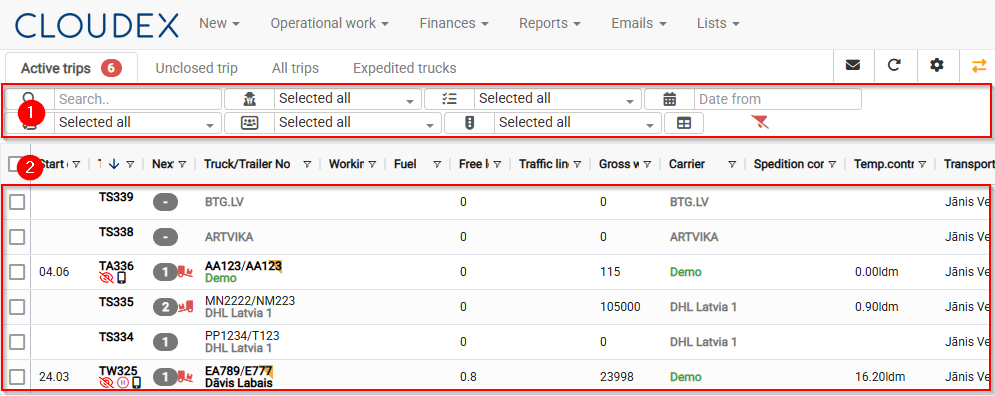
[](https://doc.ozols.lv/uploads/images/gallery/2026-06/image-1781000359766.png) ### How to use the Active Trips view? 1. Filters 2. List of currently available tripsBy default, trips/shipments will remain in the Active Trips list until their status [](https://help.cloudex.app/uploads/images/gallery/2026-06/ePmimage.png) is changed to "Delivered."
[](https://doc.ozols.lv/uploads/images/gallery/2026-06/image-1781000582715.png) # How to open the Unplanned Cargo Map? 1. Click **“New”** in the top navigation bar 2. From the pop-up menu, select **“Trips/Expeditions”**Required workflow: **Operational work → Trips/Expeditions**. You will open the **Trips/Expeditions** window.
---**Current Unplanned Cargo Map** The current unplanned cargo map displays cargo in a visually clear way, making it easier to search for shipments.
For cargo to be properly displayed on the map, loading and unloading coordinates are important. See the image below.
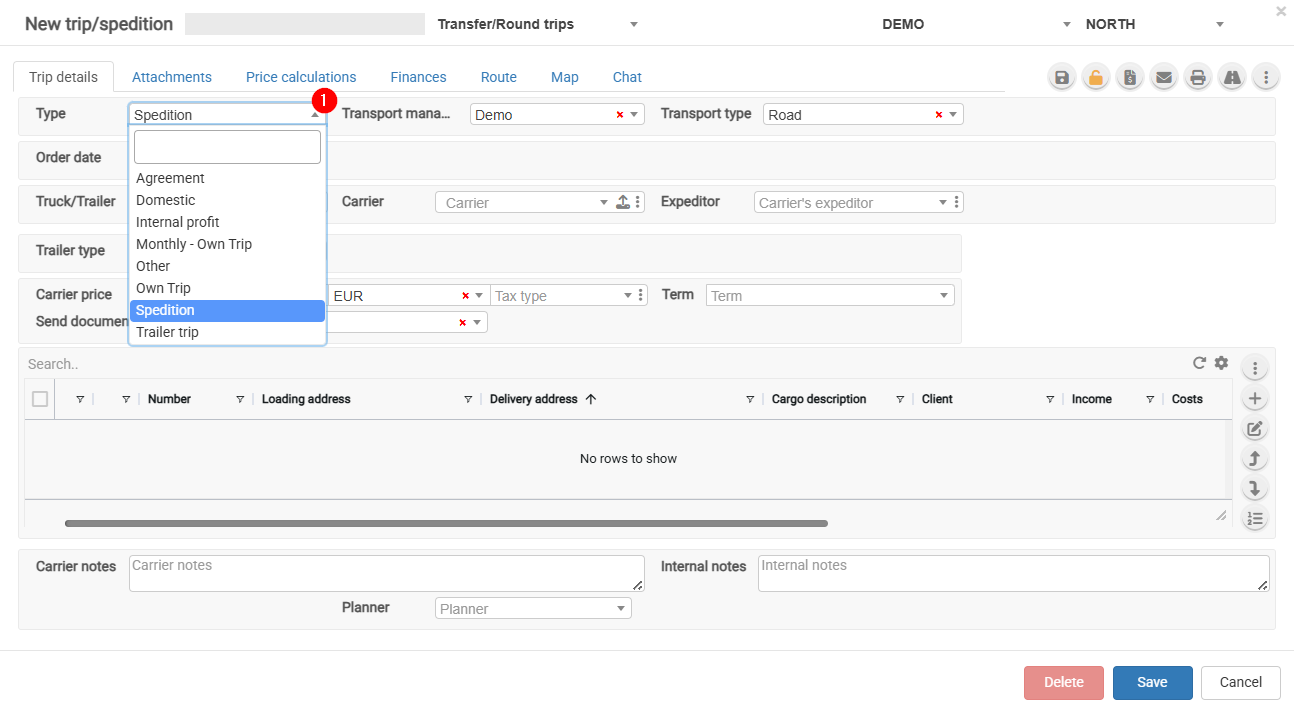
[](https://doc.ozols.lv/uploads/images/gallery/2024-07/image-1722322393255.png) Cargo can be filtered by the following attributes: **Export, Local, Transit, Import, Round trip**. [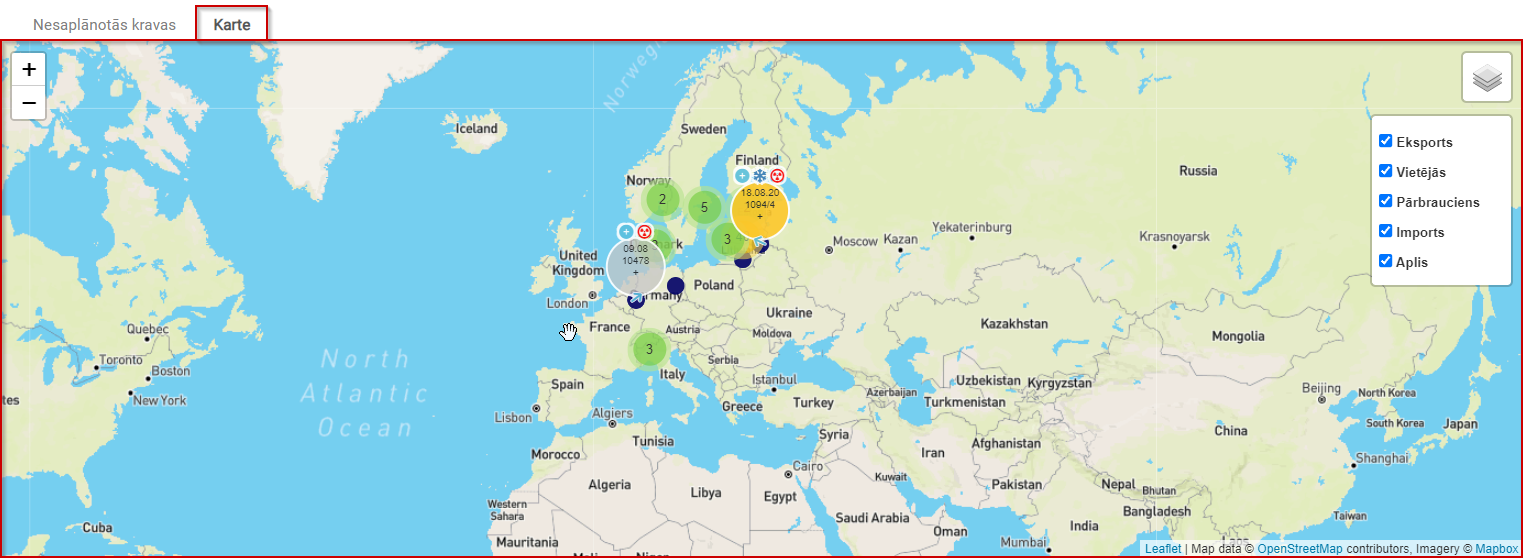](https://doc.ozols.lv/uploads/images/gallery/2024-07/image-1722321986405.png) # How to open Trip Tracking / Map / Chat? 1. Open **Trip Tracking / Map / Chat**. [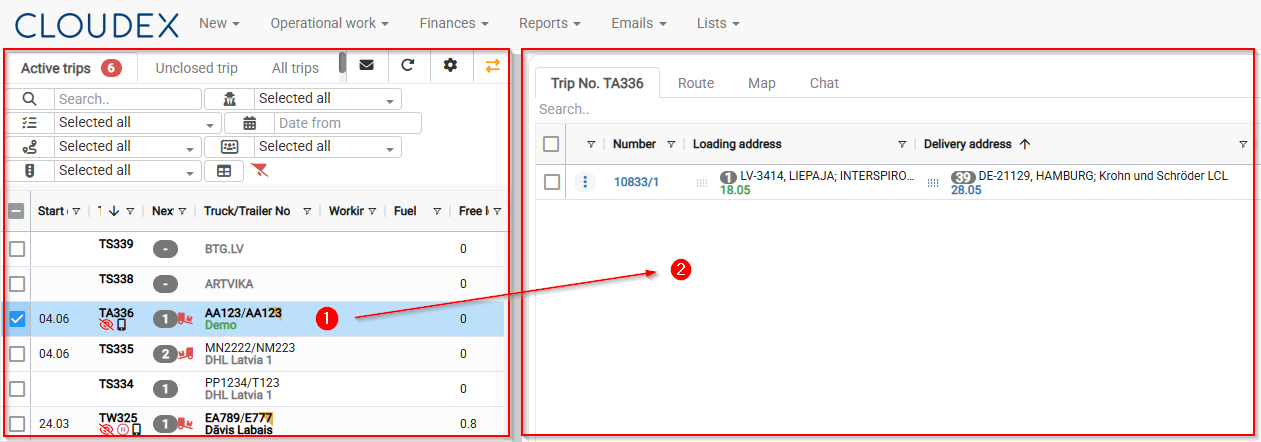](https://doc.ozols.lv/uploads/images/gallery/2026-06/image-1781073918549.png) 2. **Trip Tracking / Map / Chat** [](https://doc.ozols.lv/uploads/images/gallery/2024-07/image-1720769819679.png) 3. **Trip Tracking** [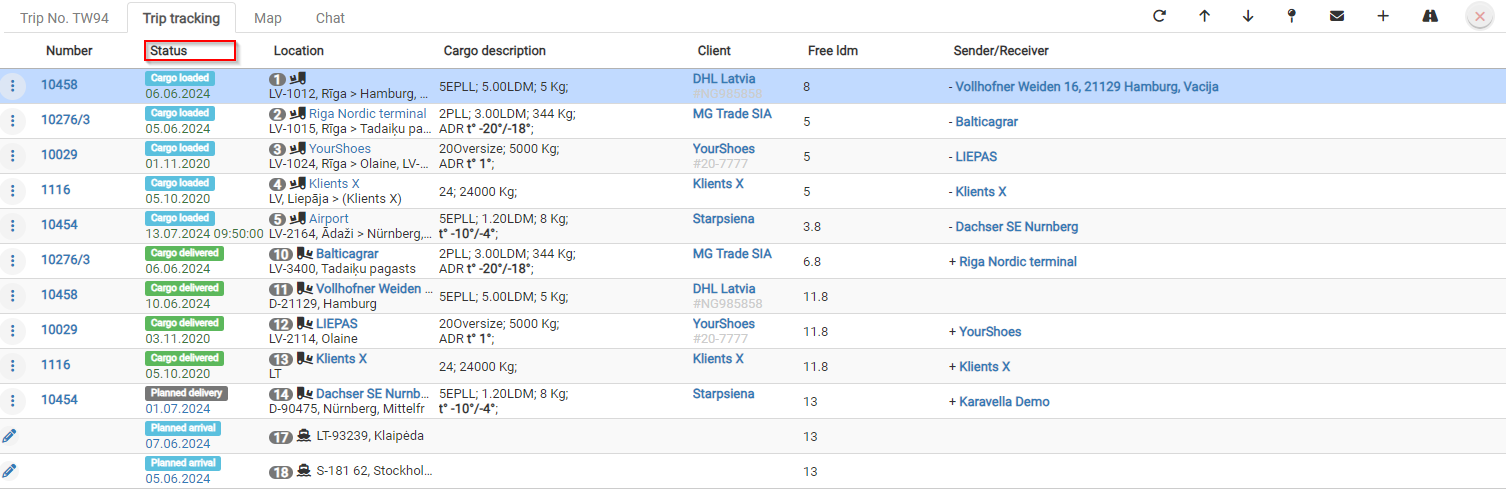](https://doc.ozols.lv/uploads/images/gallery/2024-07/image-1720769979107.png) 4. **Map** 5. **Distance in kilometers between stops.** 6. **Add additional stops** by clicking the **+** symbol. [](https://doc.ozols.lv/uploads/images/gallery/2024-07/image-1720770781392.png) [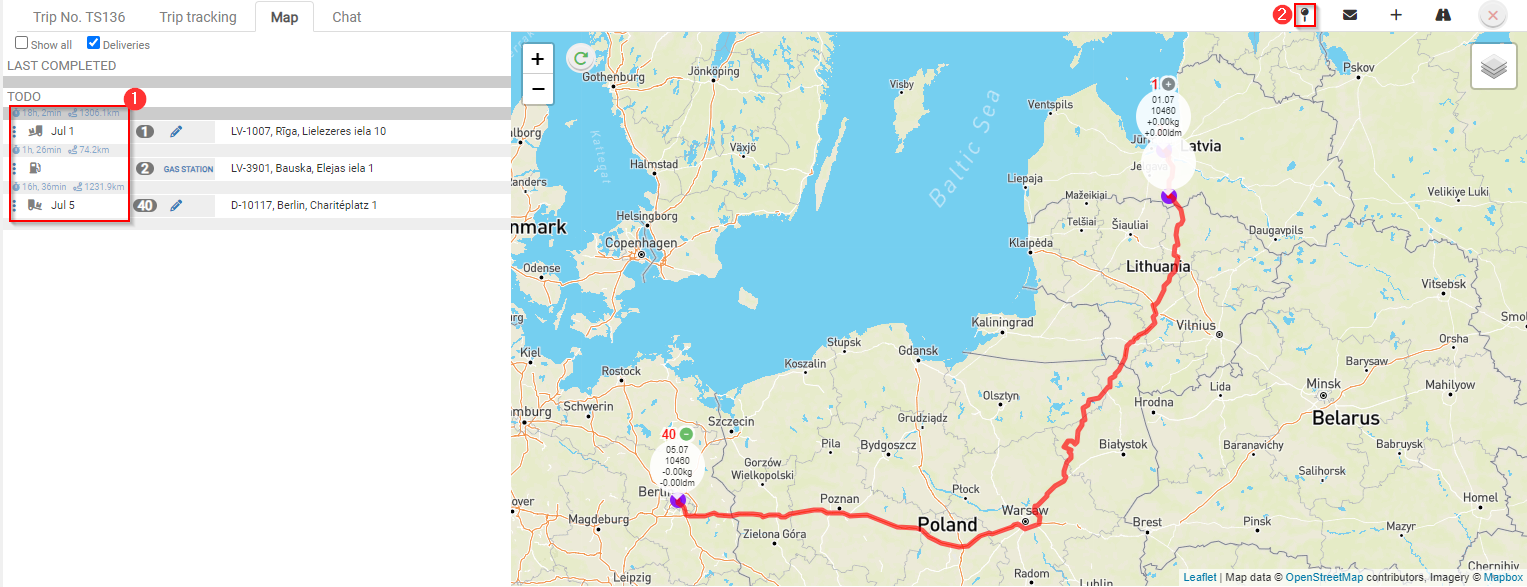](https://doc.ozols.lv/uploads/images/gallery/2024-07/image-1720770594751.png) # How to create a new trip? 1. Click the **“New”** button in the toolbar. 2. From the menu that opens, select **“Trip/Expedition”**. [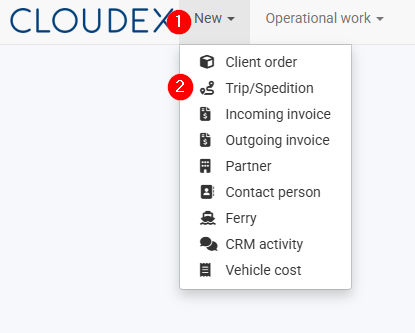](https://doc.ozols.lv/uploads/images/gallery/2026-06/image-1781074232876.png) ### Which Trip/Expedition type should I choose? - **Agreement** – Select this option when a subcontractor operates under your management and you are forwarding the vehicle for a full or partial route. Payment is usually calculated based on the kilometers driven. - **Domestic** – Local transportation. - **Monthly** – Monthly trip. - **Other** – Other types of trips. - **Own Trip** – Select this option when the trip is performed with your own vehicle. This enables the completion of the driver's report. - **Spedition** – Freight forwarding and cargo transportation.To ensure accurate trip reporting, it is important to select the correct trip type.
[](https://doc.ozols.lv/uploads/images/gallery/2026-06/image-1781074911904.png) # How to cauculate trip price - Other expenses - Idle time - Extra LDM - Loading locations - Loading locations in Norway - EU rate (EUR/km) - Norway rate (EUR/km) [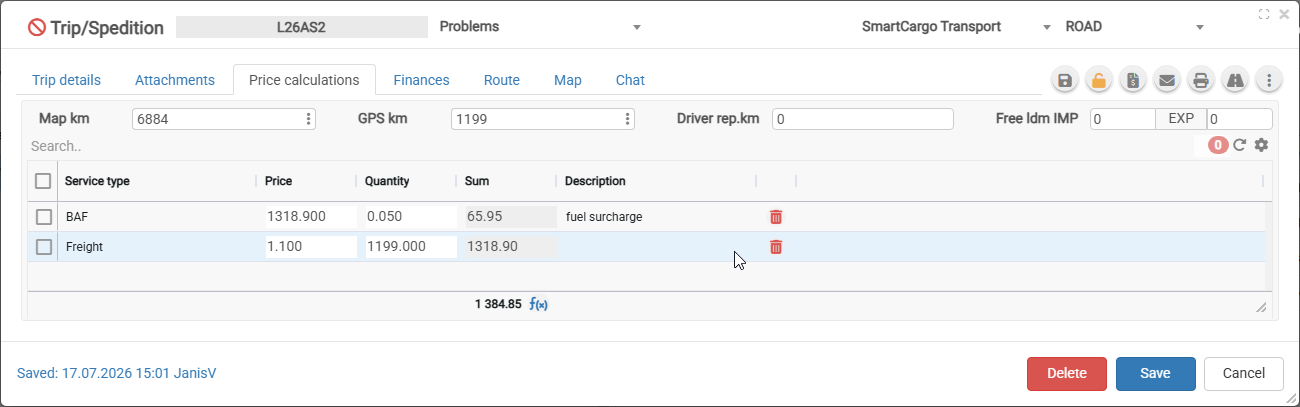](https://help.cloudex.app/uploads/images/gallery/2026-07/ikWimage.png) [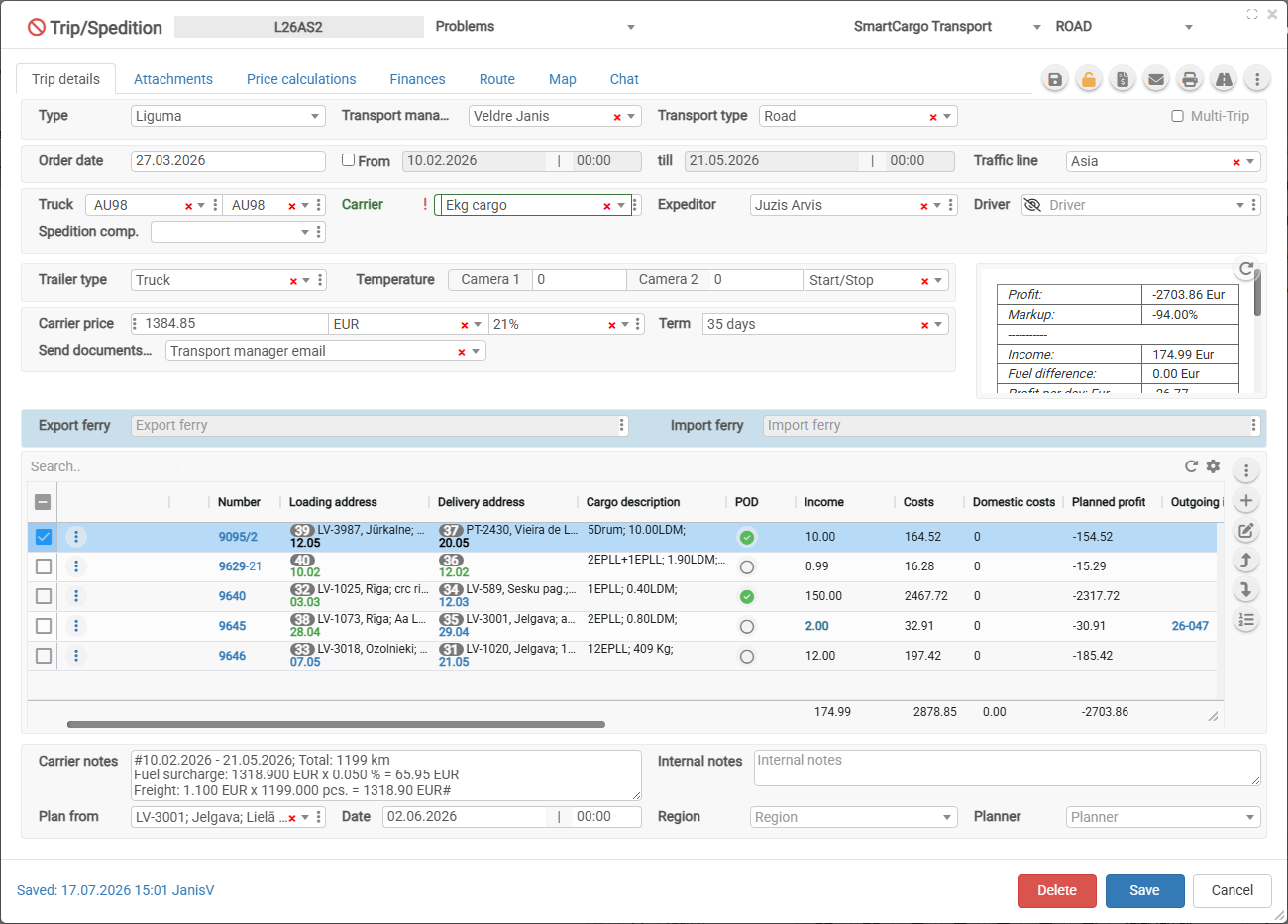](https://help.cloudex.app/uploads/images/gallery/2026-07/uxVimage.png)