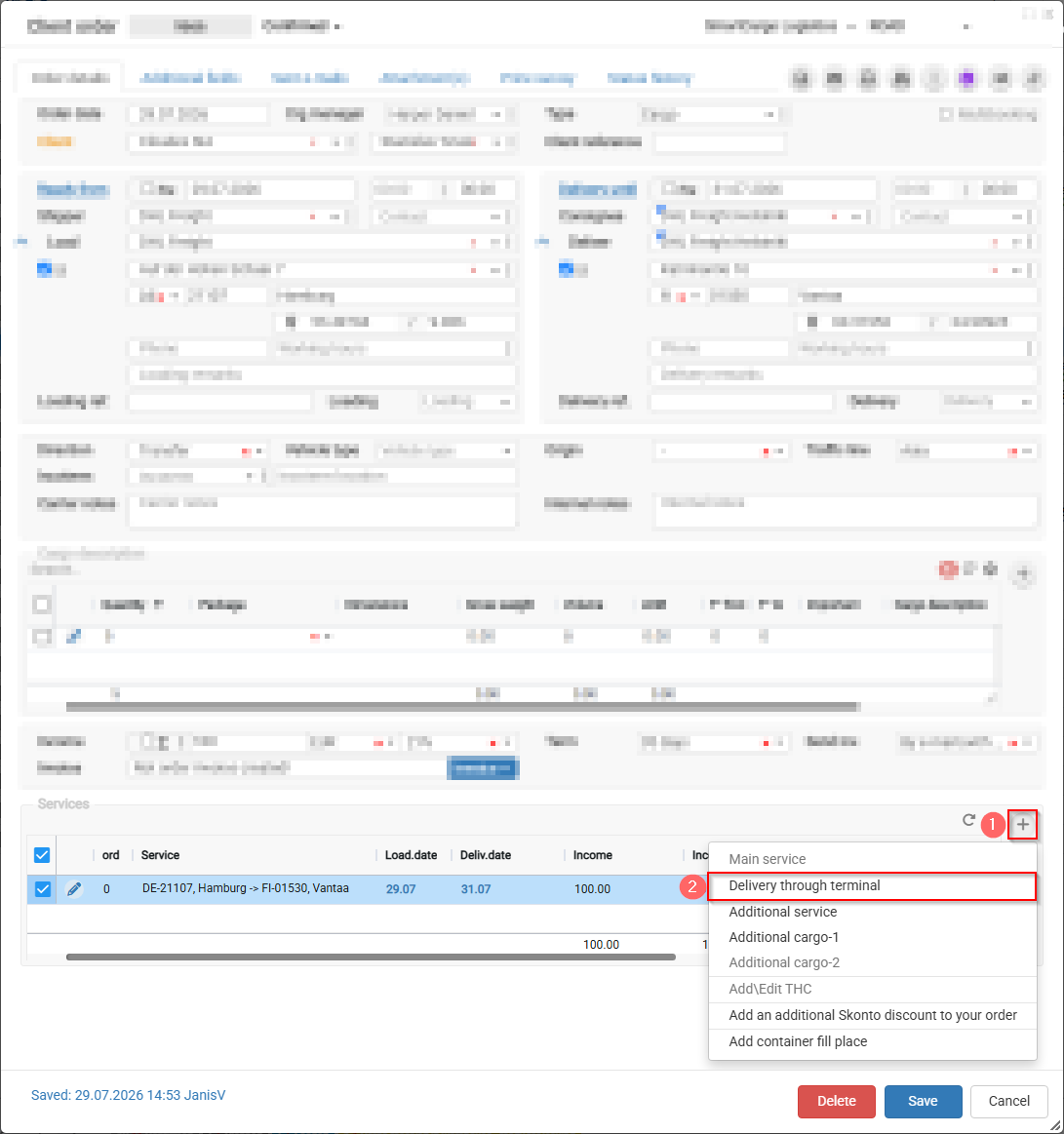
**Client Order → Services → + →Delivery via Terminal**
[](https://help.cloudex.app/uploads/images/gallery/2026-07/D0vterminal-en.png) ### How to select Delivery via Terminal in the Services section? 1. Select the required terminal; the address will be filled in automatically. 2. Split the route **La systems GmbH → FI-01530** into two parts. 3. Planned delivery deadline to the terminal. 4. Specify the amount allocated for the stage from the terminal to the delivery address. 5. If you know which truck will transport the cargo, you can create a new trip or add it to an existing trip. 6. Assign it to the department responsible for delivery from the terminal to the delivery address. [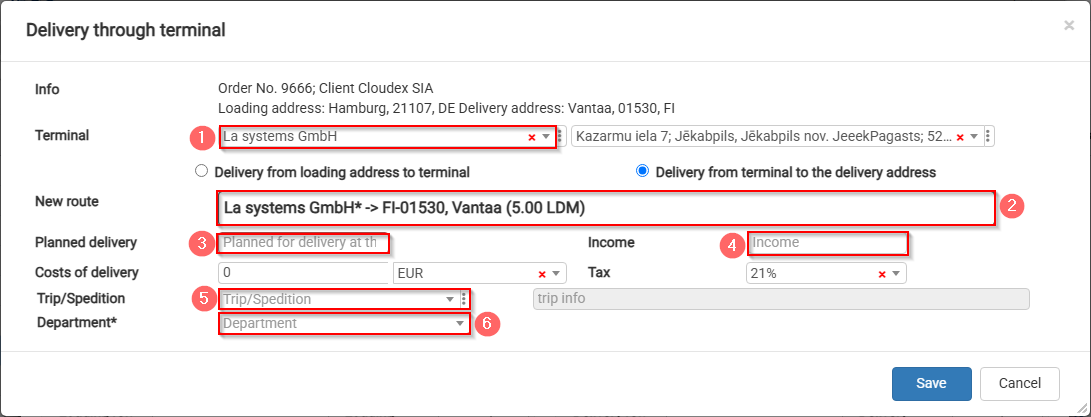](https://help.cloudex.app/uploads/images/gallery/2026-07/terminal-en-2.png) ### How does the Services view change after adding Delivery via Terminal?The overall delivery process is divided into two stages, and each stage is assigned a specific amount:
1. Total amount to be received from the customer. 2. Revenue distributed among departments. 3. Departments responsible for specific delivery stages. [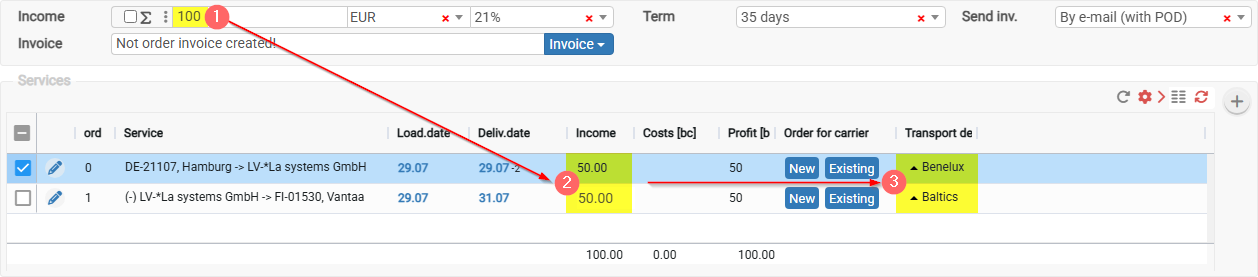](https://help.cloudex.app/uploads/images/gallery/2026-07/PrDterminal-en-3.png)