How to export outgoing invoices to an accounting system
Export outgoing invoices from Cloudex TMS to a file that your bookkeeper can import into your accounting system. This reduces manual data entry and helps avoid mistakes when transferring invoice information.
Before you start
-
Check with your bookkeeper which export format your accounting system requires.
-
Make sure the invoices you want to export contain the correct information.
-
Confirm which invoices have already been transferred to accounting to avoid importing duplicates.
How to export invoices
-
-
Go to Finances → Outgoing invoices.
-
Use the filter to select the required date period and apply the filter.
-
Select the invoices you want to export. If you need all invoices in the filtered list, select them all.
-
Click Export invoices to accounting.
-
Choose the export format required by your accounting system.
-
Click Export.
-
Send the generated file to your bookkeeper or import it into your accounting system.
-
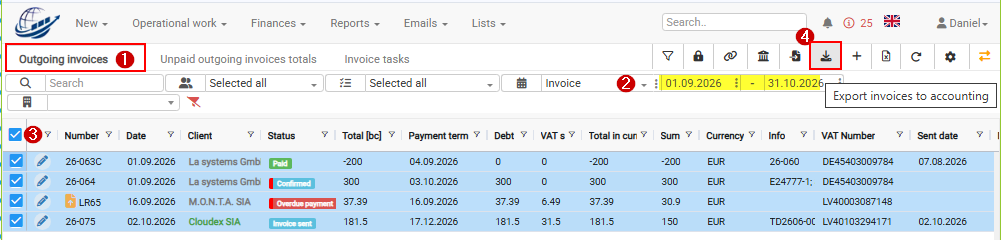
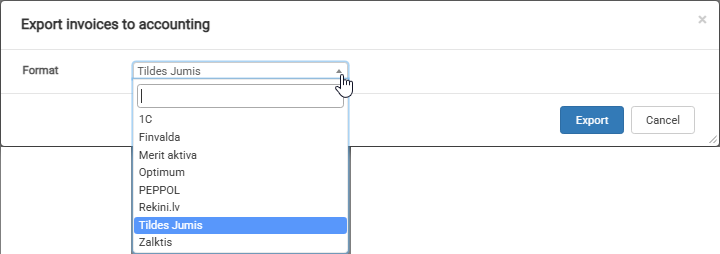
Result: Cloudex TMS generates an export file containing the selected invoices.
Important: Creating the export file does not complete the import into your accounting system. The file must still be imported there.
Common questions
Which export format should I choose?
Choose the format required by the accounting system that will receive the invoices. If you are unsure, ask your bookkeeper before exporting.
Why is an invoice missing from the list?
Check the selected date period and any other active filters. Adjust the filters so the required invoice appears, then select it for export.
Can I export only specific invoices?
Yes. Select only the invoices you want to include before clicking Export invoices to accounting.
What should I check if the accounting system rejects the file?
Check that you selected the correct export format. Review the error message in the accounting system with your bookkeeper to identify any missing information or required corrections.
Can I export the same invoices again?
Before repeating an export, check whether the invoices have already been imported into accounting. Importing the same invoices again may create duplicates, depending on how your accounting system handles them.