The customer portal can be activated from the customer profile.
1. Open **Lists** in the top navigation bar. 2. Select **Partners**. 3. Click **All Partners**. [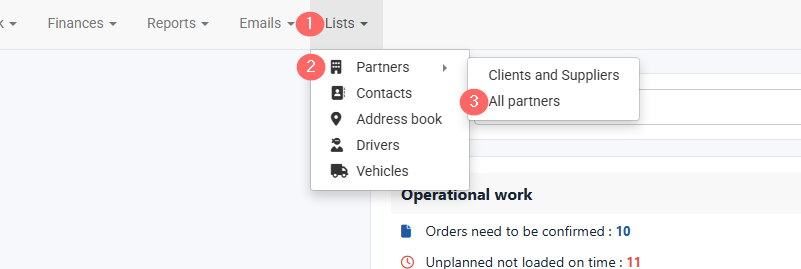](https://help.cloudex.app/uploads/images/gallery/2026-07/CEtimage.png) 4\. Find the required partner. 5\. Click the **Edit** icon . [](https://help.cloudex.app/uploads/images/gallery/2026-07/ePTimage.png) to open the partner profile. [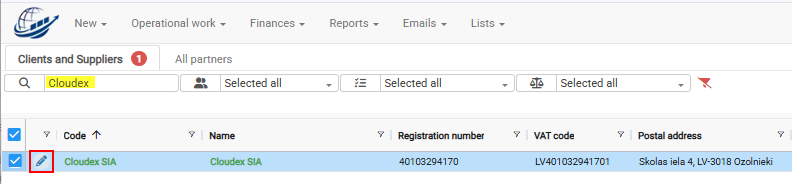](https://help.cloudex.app/uploads/images/gallery/2026-07/k9Oimage.png) 6\. Select the manager you want to grant portal access to, then click the **Edit** icon [](https://help.cloudex.app/uploads/images/gallery/2026-07/ePTimage.png) to open contact. [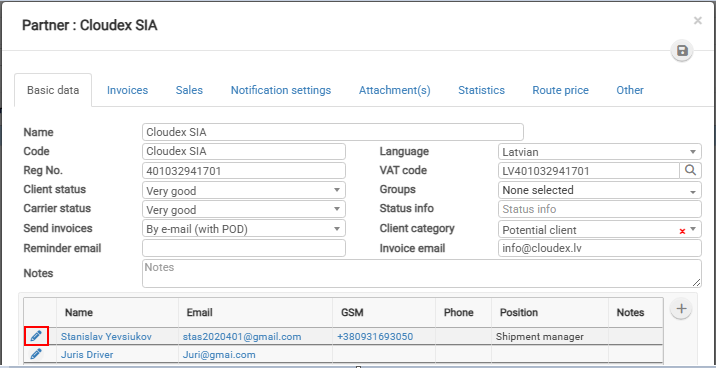](https://help.cloudex.app/uploads/images/gallery/2026-07/RCeimage.png) 7\. Switch from **Basic data** to the **Clients & Carriers Portal access** section to give **Access granted.** 8\. Review and click **** **Send invitation** to Client contact person. [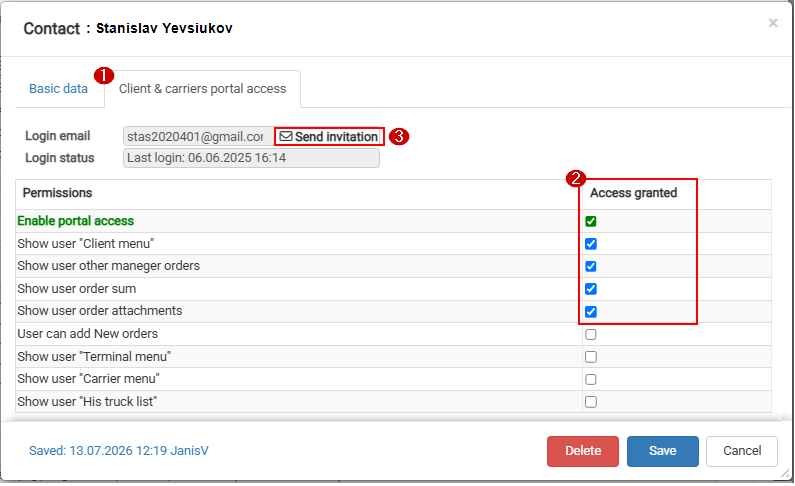](https://help.cloudex.app/uploads/images/gallery/2026-07/sv8image.png)