How to record a customer self-billing invoice?
Use this function when your customer uses self-billing — meaning that the customer creates the invoice for your services on your behalf.
In Cloudex TMS, you should still create the Outgoing invoice as usual so that the revenue, customer debt and related Client orders are correctly recorded in the system.
Additionally, Cloudex TMS allows you to save the invoice number assigned by the customer in the Self-billing No field.
This is especially useful when the customer later makes a payment using their self-billing invoice number as the payment reference.
1. How to enable self-billing for a customer?
You only need to configure this once for each customer that uses self-billing.
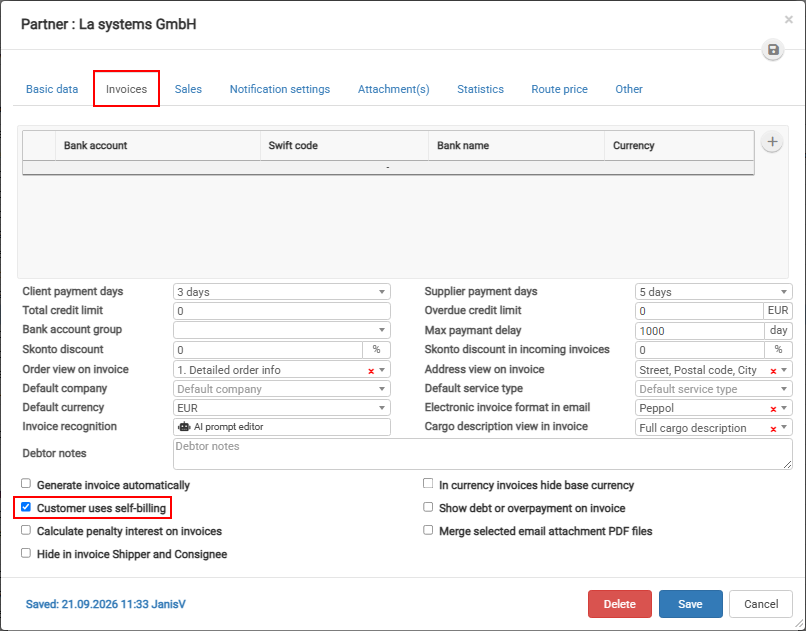
Go to: Partners → Open the customer → Invoices
- Open the Invoice tab.
- Select Customer uses self-billing.
- Click the Save button.
After this setting is enabled, the Self-billing No field will become available on outgoing invoices created for this customer.
2. How to enter the customer's self-billing invoice number?
Create the customer's Outgoing invoice in Cloudex TMS as usual.
On the outgoing invoice:
- Find the Self-billing No field.
- Enter the invoice number shown on the self-billing invoice received from the customer.
- Click the Save button.
Example
Cloudex TMS outgoing invoice number: INV-2026-01584
Customer's self-billing invoice number: SB-45879
Enter SB-45879 in the Self-billing No field.
The Cloudex TMS invoice number remains unchanged.

Why is the Self-billing No important?
Customers that use self-billing may use their own invoice number when making a payment.
Saving this number in Cloudex TMS makes it easier to identify which outgoing invoice the received payment belongs to and helps with automatic or manual payment matching.