# How to register an Incoming Invoice?

To register a single invoice for multiple trips at once, you can do so in one of the following ways:

- [How to register an Invoice from the Trip Form?](https://help.cloudex.app/link/30#bkmrk-1.-registering-an-in)
- [How to Register an Invoice from the Open Trips window?](https://help.cloudex.app/link/30#bkmrk-how-to-register-an-i-1)

### How to register an Invoice from the Trip Form?

1. Open **the Trip.**
2. Click the **"Register Invoice"** button.

[![image-1780561081176.png](https://doc.ozols.lv/uploads/images/gallery/2026-06/scaled-1680-/image-1780561081176.png)](https://doc.ozols.lv/uploads/images/gallery/2026-06/image-1780561081176.png)

<p class="callout info">For an unconfirmed invoice, it is possible to add other customer orders.</p>

### How to Register an Invoice from the Open Trips window?

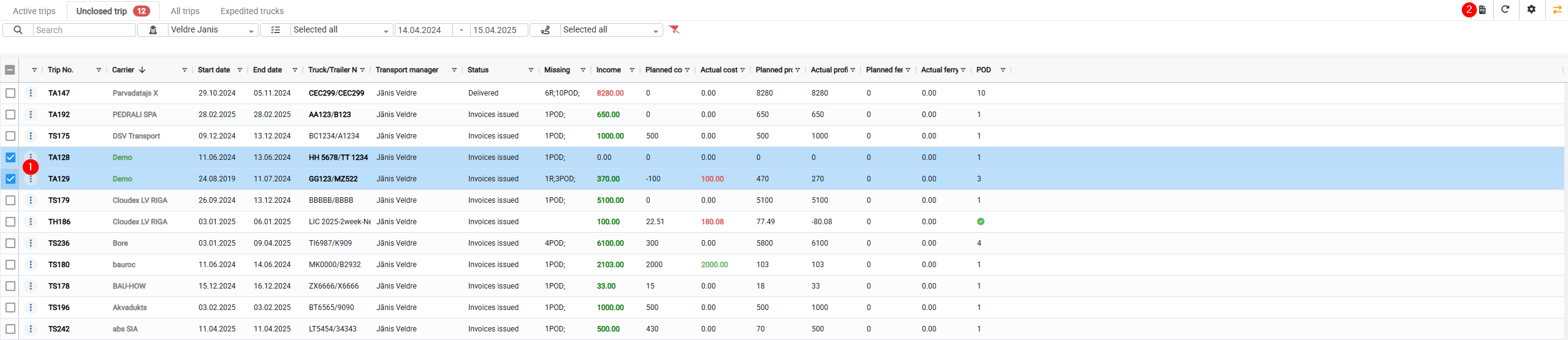
<p class="callout info">Navigate to the **Open Trips** tab. Select the trips for which incoming invoices have been received and click the **"Register Incoming Invoice"** button.</p>

1. Select the trips for which you want to register an incoming invoice.
2. Click the invoice registration icon[![image-1780561317768.png](https://doc.ozols.lv/uploads/images/gallery/2026-06/scaled-1680-/image-1780561317768.png)](https://doc.ozols.lv/uploads/images/gallery/2026-06/image-1780561317768.png)
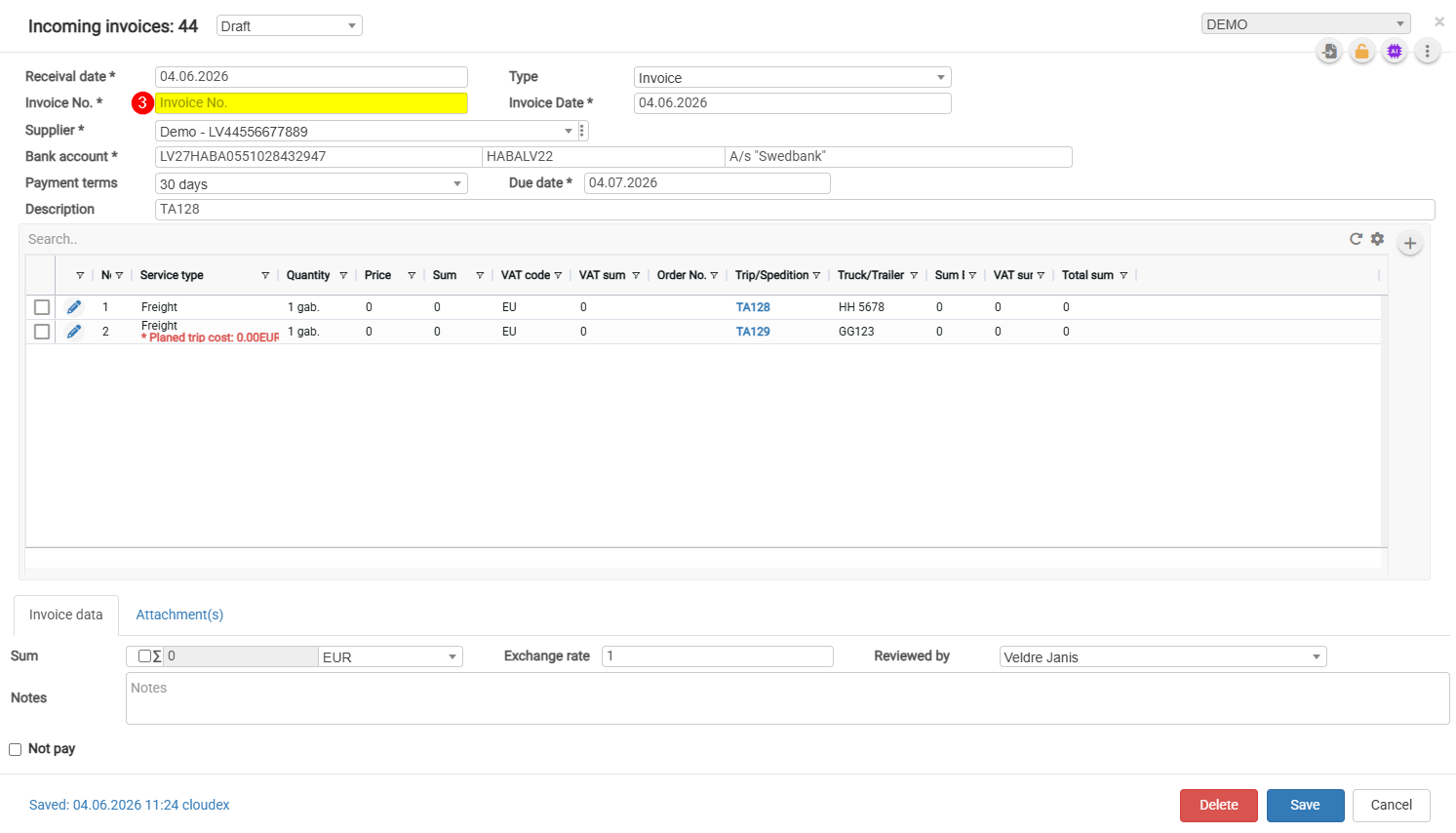
3. Complete the required fields and click **Save**.

[![image-1780561219944.png](https://doc.ozols.lv/uploads/images/gallery/2026-06/scaled-1680-/image-1780561219944.png)](https://doc.ozols.lv/uploads/images/gallery/2026-06/image-1780561219944.png)

[![image-1780561499887.png](https://doc.ozols.lv/uploads/images/gallery/2026-06/scaled-1680-/image-1780561499887.png)](https://doc.ozols.lv/uploads/images/gallery/2026-06/image-1780561499887.png)