How to Add order to the trip?
How to add cargo from cargo form?
- Open the client order
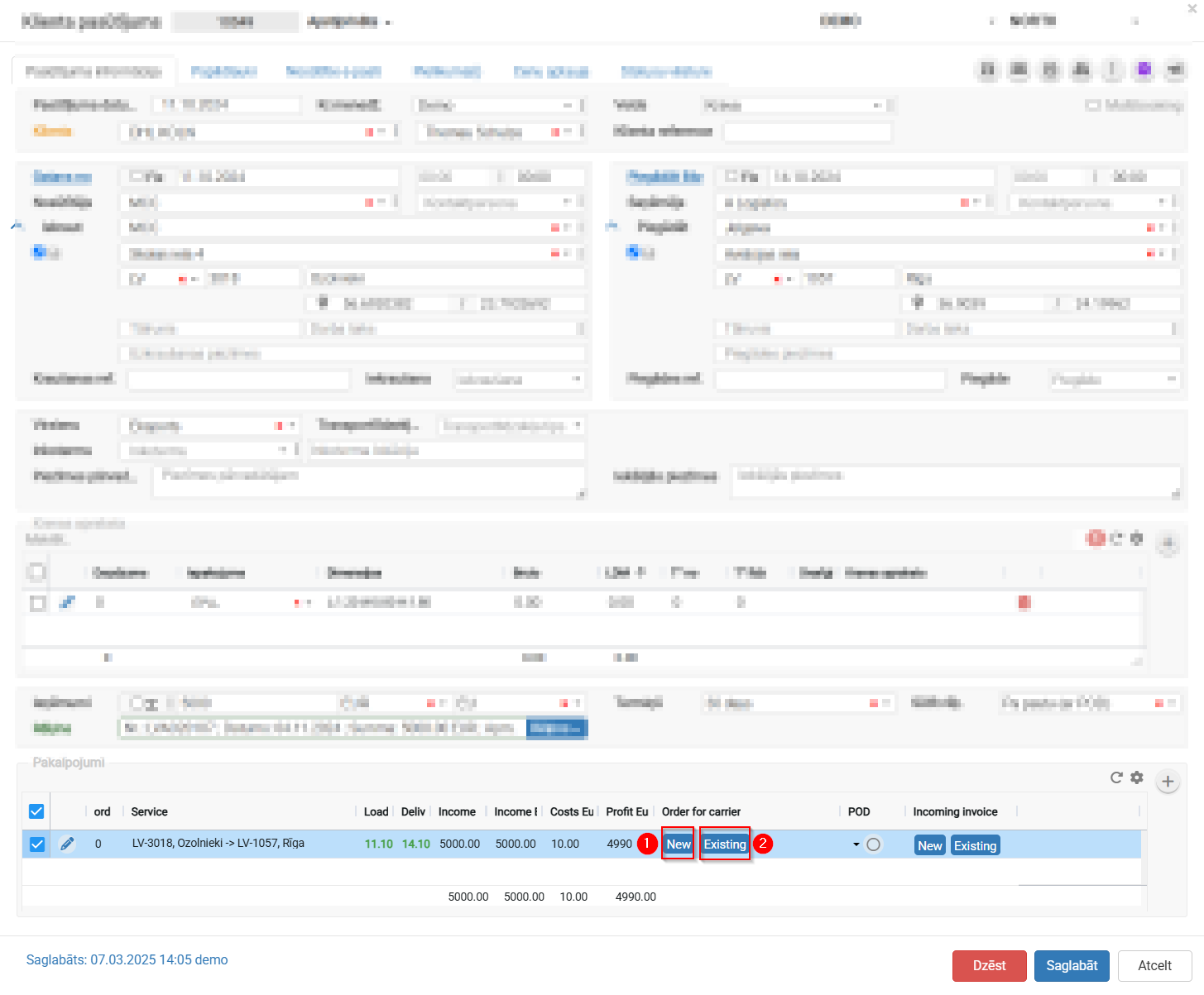
- Scroll down to the "Services" section at the bottom of the screen.
- In this table you'll see a service row with the route (e.g., LV-3018, Ozolnieki → LV-1057, Riga), loading and unloading dates, income, and costs.
- In the "Order for carrier" column there are two buttons:
- "New"
 — create a new trip/order for the carrier and assign this cargo to it.
 - "Existing"
 — assign this cargo (order) to an already existing trip.
- "New"
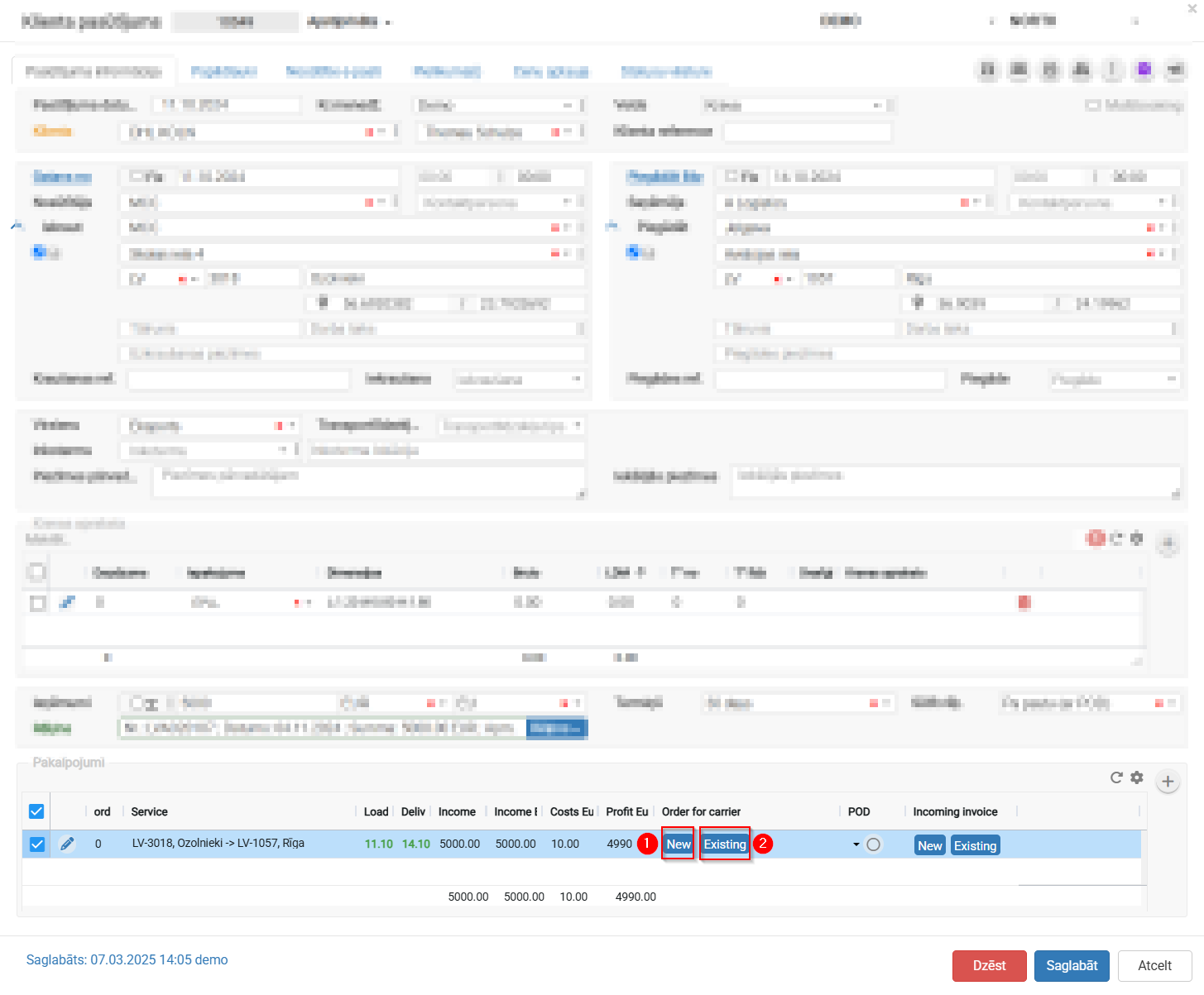
- To add the order to an existing trip:
- Click the "Existing" button.
- A window/list will open showing available trips (filterable by route, date, vehicle, etc.).
- Select the matching trip from the list and confirm.
- To create a new trip for this order:
- Click the "New" button.
- The system will create a new carrier order/trip using this client order's data (route, cargo details, dates).
- Click "Save" at the bottom of the screen to confirm the changes.


How to add cargo from planning desk?
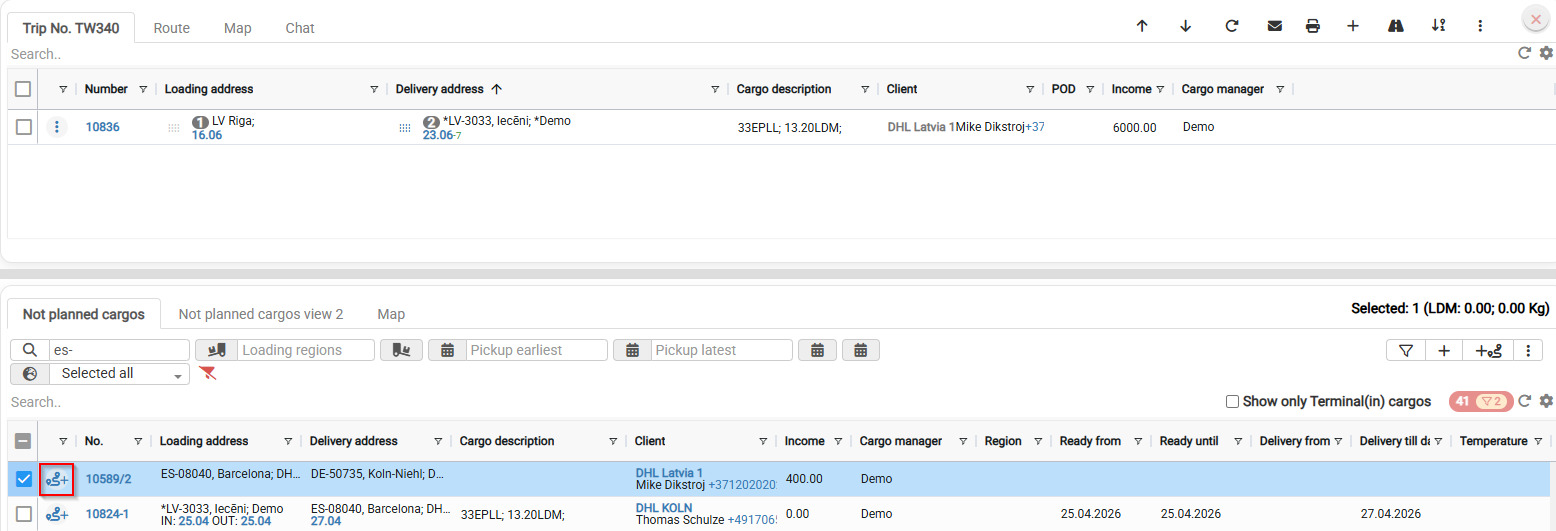
Select the appropriate shipment from the “Not planned cargos” window, mark it, and press  button; the shipment will then be assigned to the selected trip or dispatch.