
How to change agreed, planned, and actual loading and delivery dates
Overview
Cloudex TMS allows you to manage three types of loading and delivery dates: Agreed, Planned, and Actual.
These dates help you track customer commitments, organize transport operations, and record when loading and delivery actually took place.
Depending on your Cloudex TMS configuration and whether the Cloudex Drive driver app is used, some dates may be filled in or updated automatically.
1. Understanding the three date types
Cloudex TMS uses different colors to distinguish between the three types of dates.
Example
A customer requests delivery on November 10, but the transport planner schedules the delivery for November 11. Due to an unexpected delay, the shipment is actually delivered on November 12.
The dates would be:
Agreed delivery: November 10 (Black)
Planned delivery: November 11 (Blue)
Actual delivery: November 12 (Green)
This distinction helps you identify differences between customer expectations, transport plans, and actual shipment execution.
2. How to change agreed loading and delivery dates
Agreed dates represent the loading and delivery dates arranged with the customer.
If the customer requests a different loading or delivery date, you may need to update the agreed date.
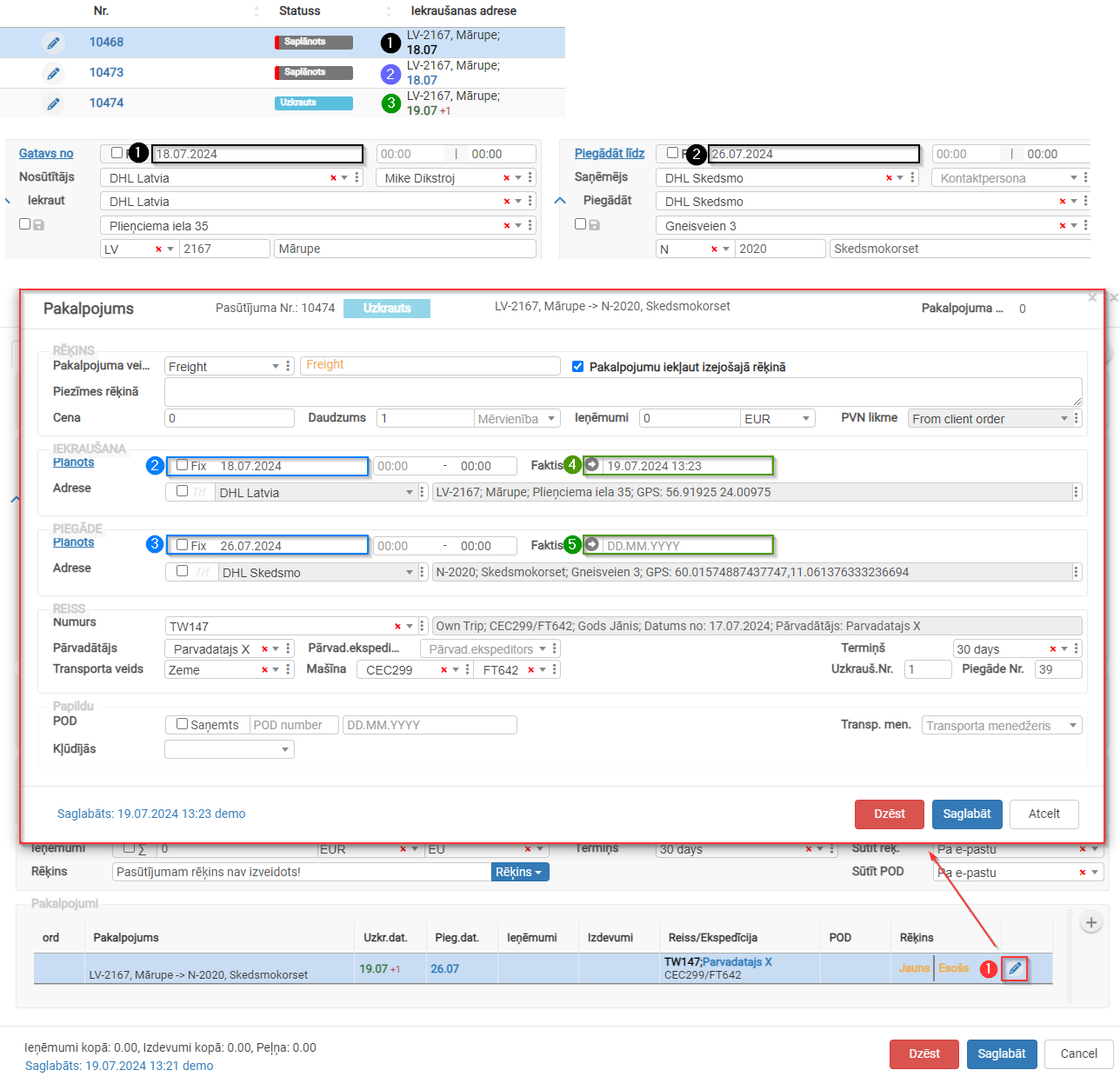
Changing agreed dates in the planning view
SarunātādatumaOpen
the Planning view.uzkraušanastheunshipmentizlādēsinmainīšanaPlānotāiekraušanasLocate
or delivery date.unthepiegādesagreeddatumaloadingmainīšanaFaktiskaiekraušanasChange
the newly agreed value.unthepiegādesdatedatumatomaiņaFaktiskauzkraušanasSave
unthepiegādeschanges,datumaifmaiņarequired.izmantojot plānošanas skatu
Uzkraušanas un piegādes plānotie un faktiskie kravas datumi aizpildās automātiski un ir atkarīgi no "Cloudex"konfigurācijas, vai tiek izmantota aplikācija "Cloudex driver".
Trīs krāsu koncepts1) Melns - norādīts sarunātais iekraušanas un piegādes datums.2) Zils - norādīts plānotais iekraušanas un piegādes datums.3) ZaļšImportant: -Agreed norādītsdates faktiskāsshould iekraušanasreflect unthe piegādesagreement with datums.the customer, not simply a change in the transport schedule.
3. How to change planned loading and delivery dates
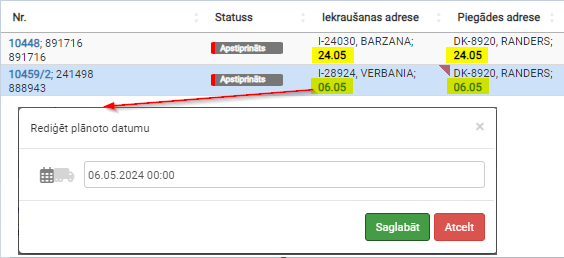
Planned dates represent when loading or delivery is currently expected to take place.
They may differ from the agreed dates due to vehicle availability, route changes, delays, or other operational circumstances.
Changing planned dates
Open the relevant shipment or trip.
Locate the planned loading or delivery date.
Update the date according to the latest transport plan.
Save the changes, if required.
Planned dates may also be updated automatically, depending on your Cloudex TMS configuration.
1.Tip: SarunātāWhen datumaa uzkraušanasshipment unis izlādēsdelayed, mainīšanaupdate plānošanasthe skatāplanned
2.date Plānotāto iekraušanasreflect unthe piegādeslatest datumaexpected mainīšana
loading or delivery time. This helps keep transport planning accurate.
4. How to change actual loading and delivery dates
Actual dates record when loading or delivery really happened.
Depending on your Cloudex TMS configuration, these dates may be updated automatically, including through the Cloudex Drive driver app.
3.Changing Faktiskaactual iekraušanasdates unmanually
Open the relevant shipment.
Locate the actual loading or delivery date.
Enter the correct date.
Save the changes, if required.
Actual dates should reflect completed loading or delivery events rather than estimated times.
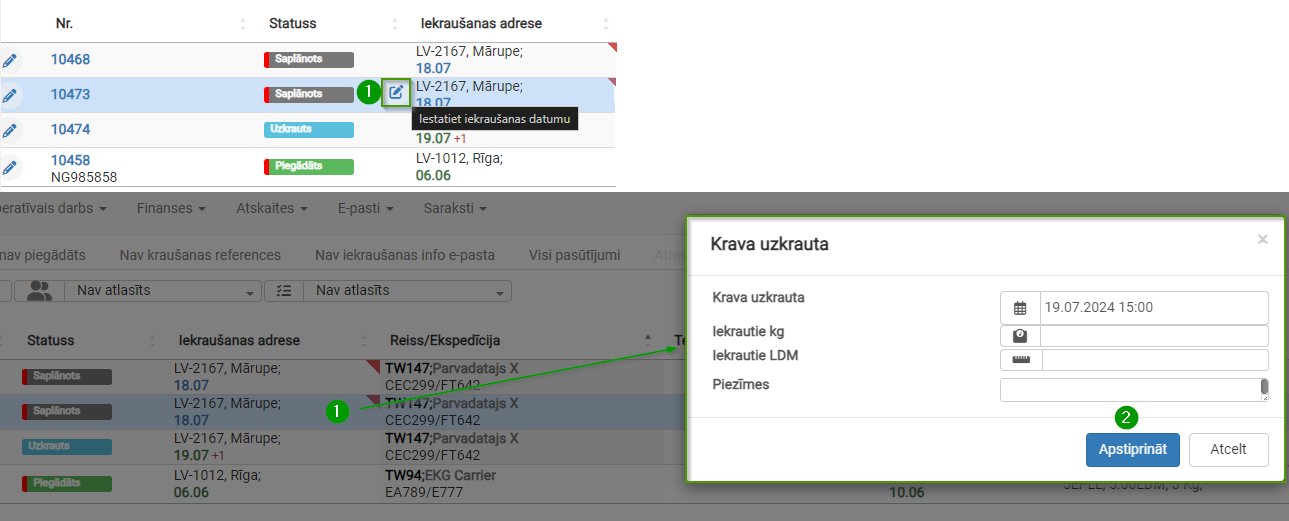
5. How to change actual dates in the Planning view
Actual loading and delivery dates can also be managed through the Planning view.
This can be useful when dispatchers need to correct or update shipment execution information while monitoring transport operations.
[Insert screenshot or GIF: Changing an actual date directly in the Planning view]
6. Automatic date updates
Cloudex TMS can automatically populate certain planned and actual loading and delivery dates.
The behavior depends on:
Your company's Cloudex TMS configuration.
Whether the Cloudex Drive driver app is used.
The workflow used to manage shipment execution.
If a date changes automatically, check whether the update is related to your company's configured workflow or information received from the driver app.
Frequently asked questions
What is the difference between agreed and planned dates?
The agreed date represents the commitment made to the customer, while the planned date represents when loading or delivery is currently expected to happen.
These dates may be different.
Should I change the agreed date when a shipment is delayed?
Not necessarily. If the transport plan changes but the original customer agreement remains unchanged, update the planned date.
Change the agreed date when a new date has been agreed with the customer.
Why are some dates updated automatically?
Cloudex TMS can populate certain dates automatically depending on the company's configuration and whether Cloudex Drive is used.
What does a green date mean?
Green represents an actual loading or delivery date.
Can actual dates be corrected manually?
The documentation describes manual changes to actual dates, including changes through the Planning view. Available editing options may depend on your company's configuration and user permissions.