
How to connect your bank account for automatic payment import?
Cloudex TMS can automatically import payments from your bank account and match them with outgoing invoices.
The bank connection is provided through GoCardless.
Why should I connect my bank account?
Without an automatic bank connection, someone needs to regularly download bank statements and import them into Cloudex TMS manually.
With automatic payment import, Cloudex TMS can:
- automatically download new bank transactions up to 3 times per day;
- automatically match payments with outgoing invoices where possible;
- keep payment information in Cloudex TMS more up to date;
- reduce manual bank statement imports;
- show payments that could not be matched automatically so they can be reviewed.
This means your accounting and transport teams spend less time checking whether customers have paid and importing payment information manually.
How much does automatic bank payment import cost?
Automatic bank payment import is a paid Cloudex TMS add-on.
Price: €15 + VAT per month for up to 5 connected bank accounts.
If you need to connect more than 5 bank accounts, please contact Cloudex support.
How to connect your bank account?
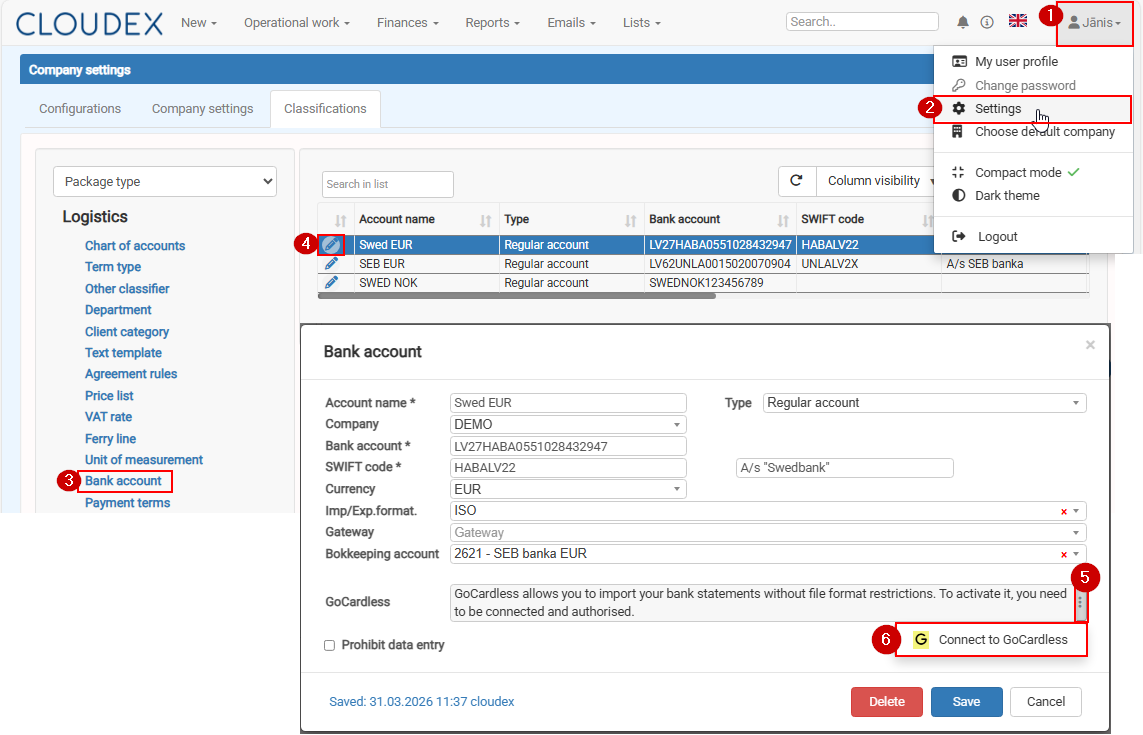
Go to: Your profile Settings → Settings → Classifications → Bank accounts
Select the bank account you want to connect and start the GoCardless bank connection process.
Follow the GoCardless authorization steps and select the bank account you want to connect with Cloudex TMS.
After the connection is completed, Cloudex TMS will start importing transactions automatically.
How can I check whether automatic import is working?
On the Cloudex TMS Dashboard, you can see information about each bank account.
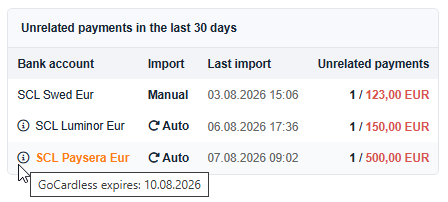
Import method: The bank account shows whether payments are:
- imported manually, or
- imported automatically through the GoCardless API.
Last import: The Last import column shows when payments were last imported into Cloudex TMS.
This can be either a manual or an automatic import.
After importing payments, Cloudex TMS tries to match them automatically with invoices.
If some payments cannot be matched, the Dashboard shows:
- the number of unrelated payments;
- the total amount of unrelated payments.
Click the bank account to open the list of unrelated payments from the last 30 days.
Review these payments and relate them manually when necessary.
Important: Your bank may periodically require you to renew the authorization for access to the bank account.