How to pay Incoming invoices?
- 1. How to prepare payments for incoming invoices?
- 2. How to export payments to the Internet bank?
- Tips ans tricks
How to pay incoming invoices?
Use this function when you want to prepare payments for supplier or carrier invoices registered in Cloudex TMS.
The payment process consists of two steps:
- Create Outgoing payments from the incoming invoices.
- Export the prepared payments to your Internet bank.
Important: Creating an outgoing payment in Cloudex TMS does not transfer money from your bank account. The payment must still be exported to the Internet bank and processed there.
1. How to prepare payments for incoming invoices?
-
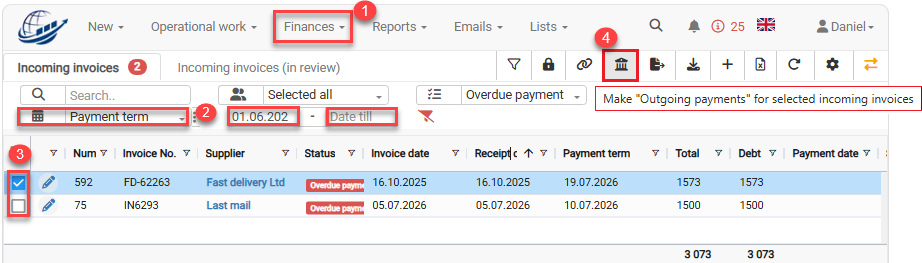
Open Finances → Incoming invoices.
-
In the Payment term filter, select the date up to which invoices should be paid.
Cloudex TMS will show incoming invoices with a payment due date up to the selected date.
-
Select the invoices you want to pay using the checkboxes.
-
Click Make outgoing payments in the toolbar.
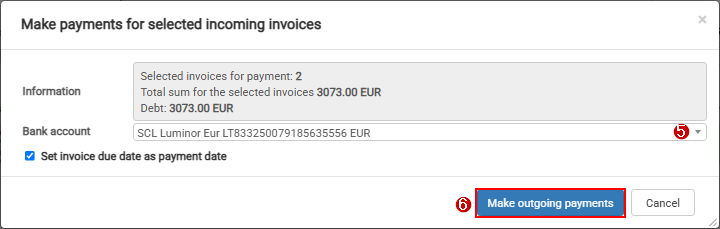
5. In the Make outgoing payments for selected incoming invoices window, select the bank account from which the payments will be made.
6, Click Make outgoing payments.
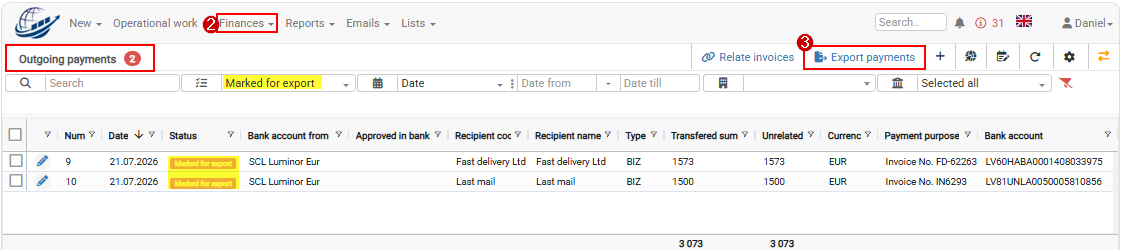
The created payments can be found under: Finances → Outgoing payments
By default, newly created payments are prepared for bank export and have the status Marked for export.
2. How to export payments to the Internet bank?
-
Open Finances → Outgoing payments.
-
Review the payments that have the status Marked for export.
-
Click Export payments
 in the toolbar.

Cloudex TMS will create the bank payment export file for the payments marked for export.
Upload the generated payment file to your Internet bank and complete the payment according to your bank's workflow.
Tips and tricks
How to exclude a payment from bank export?
When an outgoing payment is created from an incoming invoice, the Export to Internetbank checkbox is selected by default.
You may want to clear this checkbox if, for example:
- the invoice has already been paid manually;
- you do not want to include this payment in the next bank export;
- the payment will be processed in another way.
To remove a payment from bank export, go to: Finances → Outgoing payments
- Find the required outgoing payment.
- Click Edit.
- Clear the Export to Internetbank checkbox.
- Click Save.
The outgoing payment will remain in Cloudex TMS, but it will no longer be included in the bank payment export.
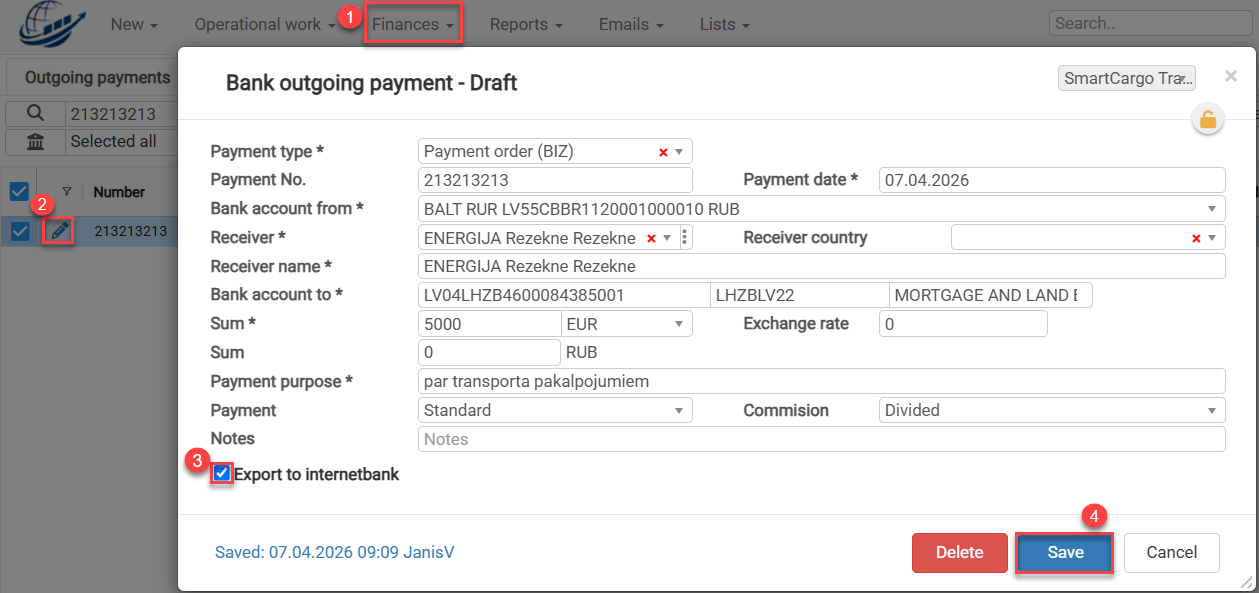
How to mark a payment for export again?
If an outgoing payment should be included in the next bank export:
- Open the outgoing payment.
- Select Export to Internetbank.
- Click Save.
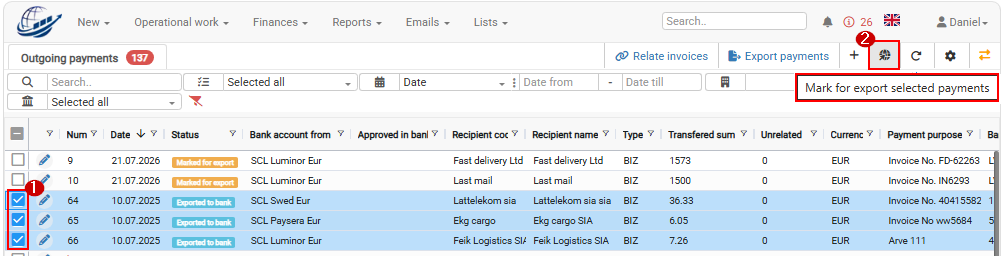
Or see picture below if you want to mark more than one payment for export again
The payment will again be marked for export.