
How to review AI generated invoices
All AI generated invoices which are read from your AI incoming invoice email getting into Incoming invoices (in review) status list
Go to Finances - Incoming invoices - Incoming invoices (in review)
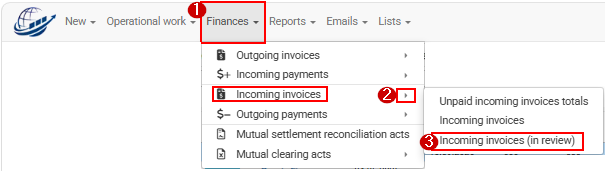
You will see all incoming invoices need to be reviewed
Open invoice you want to review
In rewiev list print screen 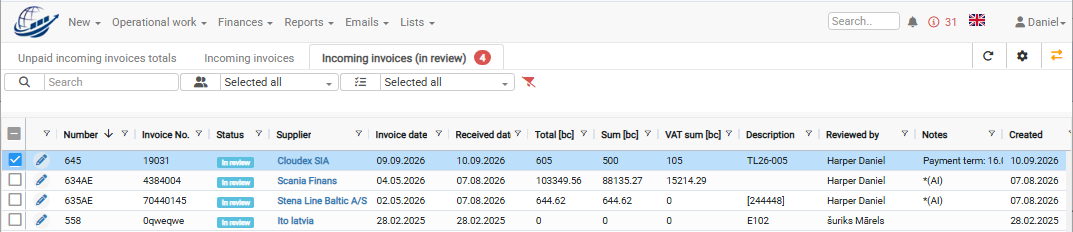
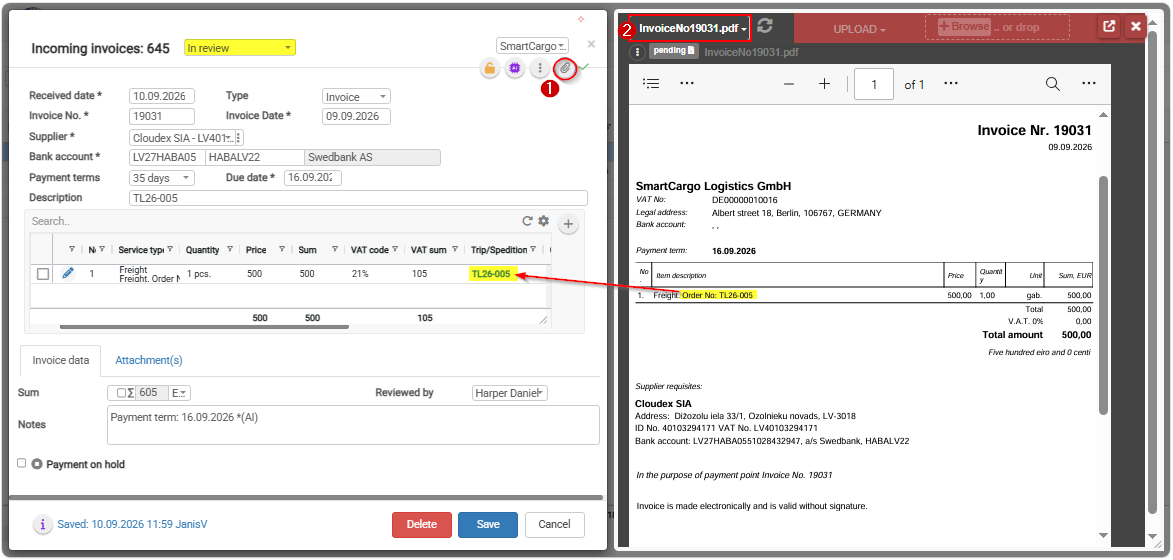
In incoming invoice right upper corner you will find Attachments icon which will open all attached attachments to invoice (usually there need to be invoice PDF and shipment POD/CMR related to invoice.
Choose Invoice attachment so it is possible to see in left part of screen generated invoice and in right screen part original received invoice from your supplier.
pay attention that invoice is attached to the right Trip/Spedition and sums are correct
Next thing you need to check do is to validate POD and move them to correct Client order if AI was not able to do it
If in Invoice attachment list you see that POD/CMR files are in Incoming invoice section it means they need to be moved manually to appropriate Client order
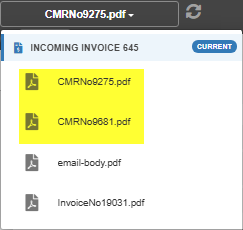
Prom 3 dot (...) menu choose Function: Move file to
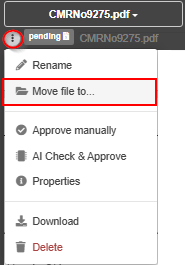
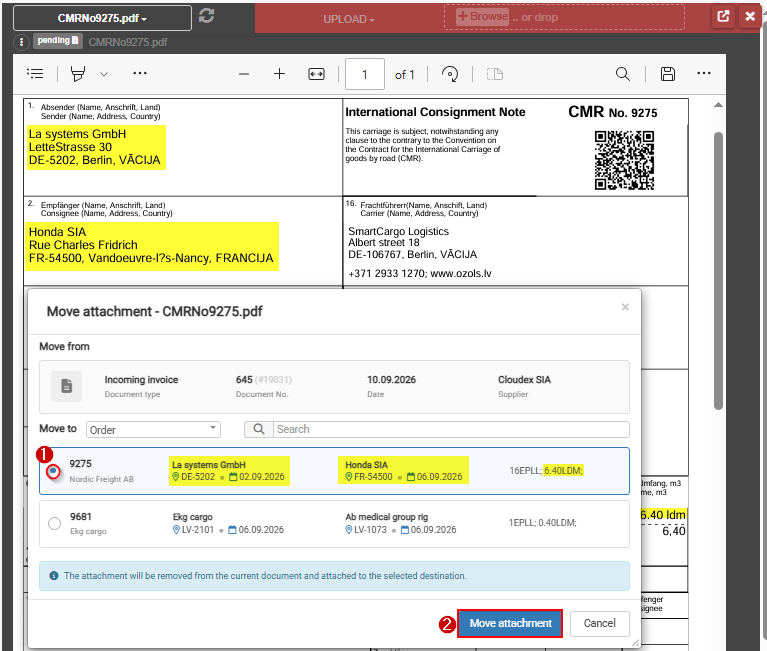
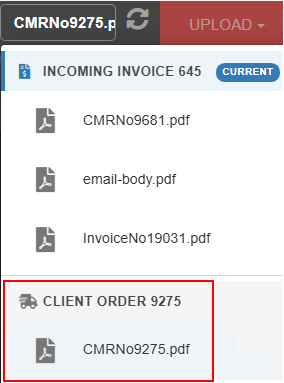
After you move POD/CMR to appropriate Client order in Invoice attachment list it will show as Client order attachment
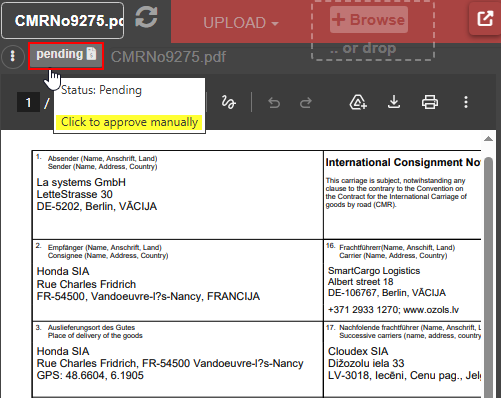
Click on POD/CMR file to approve it. So that Client order is ready for invoicing and invoice can be sent automatically with approved POD/CMR
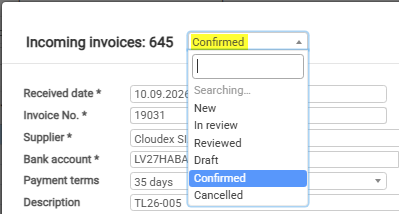
Finally change Incoming invoice status from In review to Confirmed and Save the invoice
Related topics