How to review AI-generated Incoming invoices and POD/CMR documents?
Incoming invoices created automatically from emails processed by the Cloudex TMS AI mailbox must be reviewed before they are confirmed.
During the review, check:
- the information read from the supplier invoice;
- whether the invoice is related to the correct Trip/Spedition;
- whether the invoice amounts are correct;
- whether POD/CMR documents are attached to the correct Client order.
When to use
Use this procedure when an Incoming invoice has been automatically created from an email received in your AI incoming-invoice-reading email.
All invoices created by AI that still require user validation can be found under:
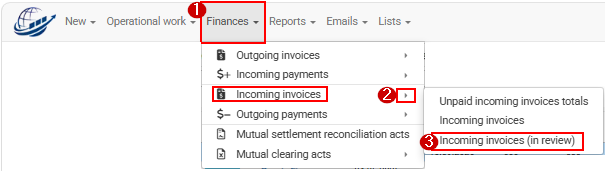
Finances → Incoming invoices → Incoming invoices (in review)
How to review an AI-generated Incoming invoice
1. Open the invoice
Go to: Finances → Incoming invoices → Incoming invoices (in review)
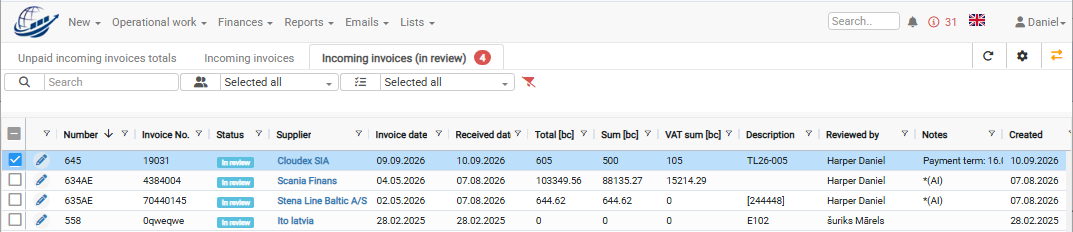
You will see Incoming invoices created by AI that still need to be reviewed.
Open the invoice you want to review.
2. Open the invoice attachments
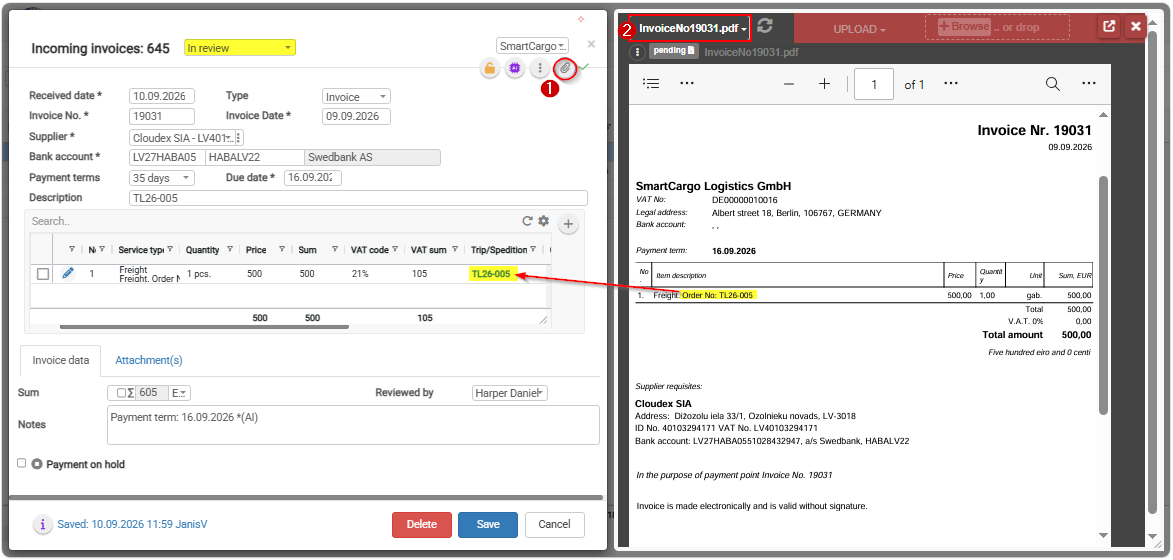
In the upper-right corner of the Incoming invoice, click the Attachments icon.
The attachments received with the original email will be displayed.
Usually, the email contains:
- the supplier's invoice PDF;
- one or more POD/CMR documents related to the shipments included in the invoice.
3. Compare the AI-generated invoice with the original invoice
Select the original invoice attachment.
Cloudex TMS allows you to review the information side by side:
- the Incoming invoice created by AI;
- the original invoice received from the supplier.
Check that the information read by AI is correct.
Pay particular attention to:
- supplier;
- invoice number and date;
- currency;
- invoice amounts and VAT;
- payment information;
- related Trip/Spedition.
Correct any information if necessary.
Important: AI helps automate invoice data entry, but the user is responsible for reviewing the information before confirming the invoice.
Review POD/CMR attachments
After checking the invoice, review the POD/CMR documents received with the email.
The invoice PDF should remain attached to the Incoming invoice.
POD/CMR documents should normally be attached to the corresponding Client order.
4. Check where the POD/CMR is attached
In the attachment list, check whether the POD/CMR file is shown under:
Incoming invoice or Client order
If the POD/CMR is already attached to the correct Client order, no action is required.
If the POD/CMR is shown under Incoming invoice, Cloudex TMS or AI was not able to determine the correct Client order automatically and the document must be moved manually.
This can happen, for example, when one carrier invoice contains costs for several shipments.
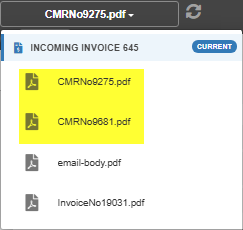
5. Move the POD/CMR to the correct Client order
Find the POD/CMR attachment.
Click the three-dot (...) menu next to the file and select: Move file to
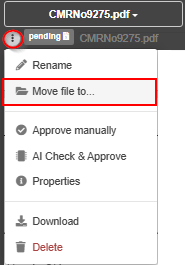
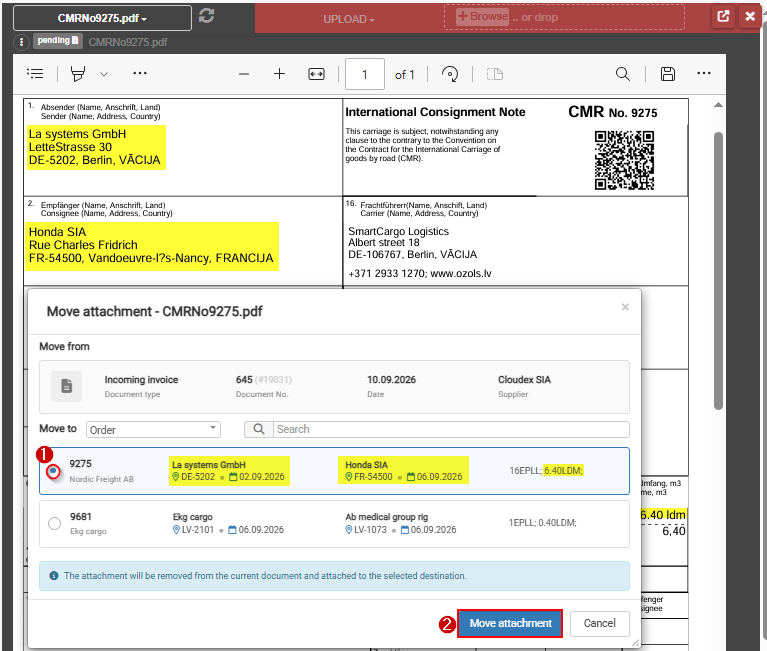
Select the appropriate Client order.
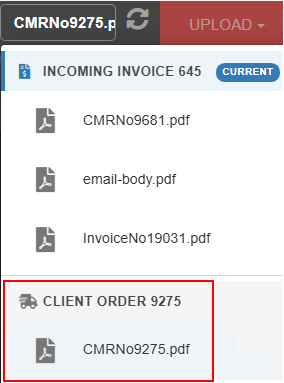
After moving the file, it will be displayed in the attachments list as a Client order attachment.
Important: Make sure you select the correct Client order before moving the document, especially when the Trip/Spedition contains several shipments.
After you move POD/CMR to appropriate Client order in Invoice attachment list it will show as Client order attachment
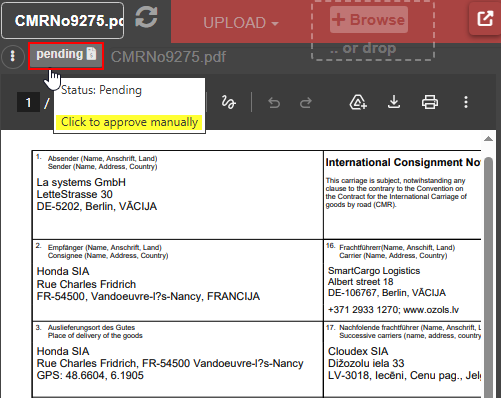
6. Review and approve the POD/CMR
Open the POD/CMR document and check that it belongs to the selected Client order.
Approve the POD/CMR if the document is correct.
An approved POD/CMR can then be used in the Client order invoicing process and, when automatic invoice sending is configured, can be included with the outgoing invoice.
Confirm the Incoming invoice
After you have:
- checked the invoice information;
- verified the related Trip/Spedition;
- checked the invoice amounts;
- moved POD/CMR documents to the correct Client orders where necessary;
- reviewed and approved the POD/CMR documents;
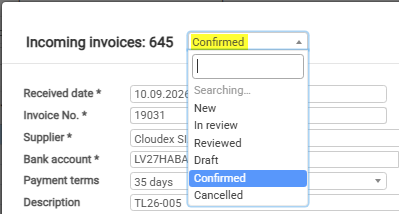
change the Incoming invoice status from:
In review → Confirmed
Click Save.
The AI-generated Incoming invoice has now been reviewed and confirmed.