
How to send an order acceptance confirmation to a client?
Send an order acceptance confirmation directly from a Client order to let your client know that you have accepted their transport order.
The email includes order details and a Track & Trace link, allowing the client to follow the shipment’s progress. You can also send the transport order document and other shipment documents.
Before you start
-
Make sure your email account is configured to send emails from Cloudex TMS.
-
Check the client’s email address and the order details.
-
Check the language selected in the Client card. Cloudex TMS uses this language for the order acceptance email, transport order email, and other shipment status notifications.
Send the confirmation
-
Open the relevant Client order.
-
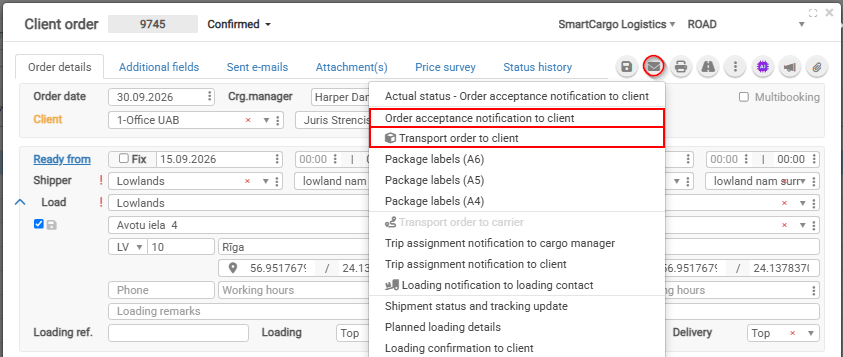
Click the envelope icon in the toolbar.
-
Select the appropriate email option:
| Email option | When to use it |
|---|---|
| Order acceptance notification to client | To confirm that you have accepted the client’s transport order. |
| Transport order to client | To send the transport order document to the client together with the email. |
-
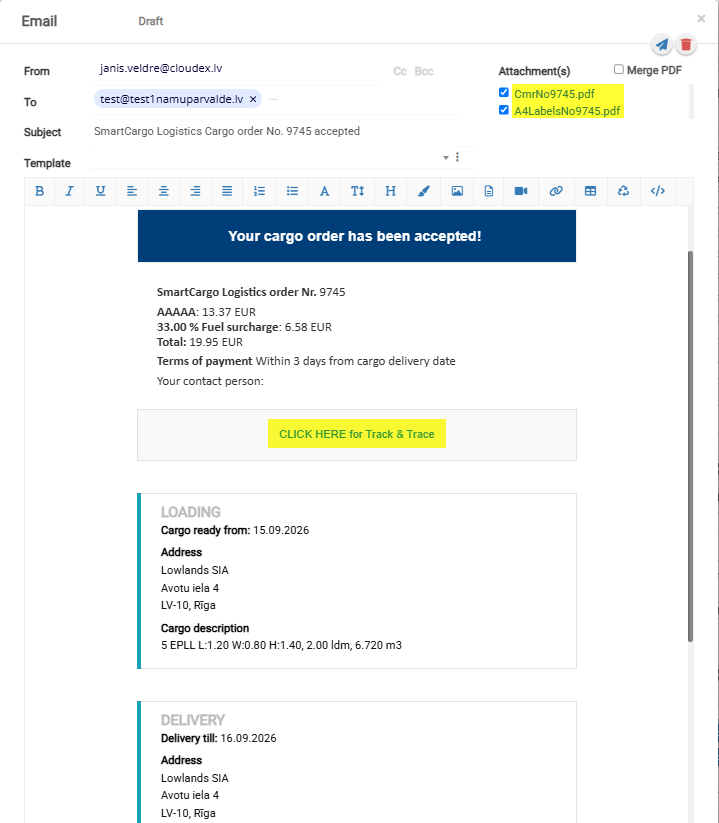
In the email window, review:
-
Attachment(s) — check which documents are selected for sending.
Attachments can include the shipment’s CMR, package labels, and, when you select Transport order to client, the transport order document.
-
-
Click the Send icon in the upper-right corner of the email window.
What can the client see through Track & Trace?
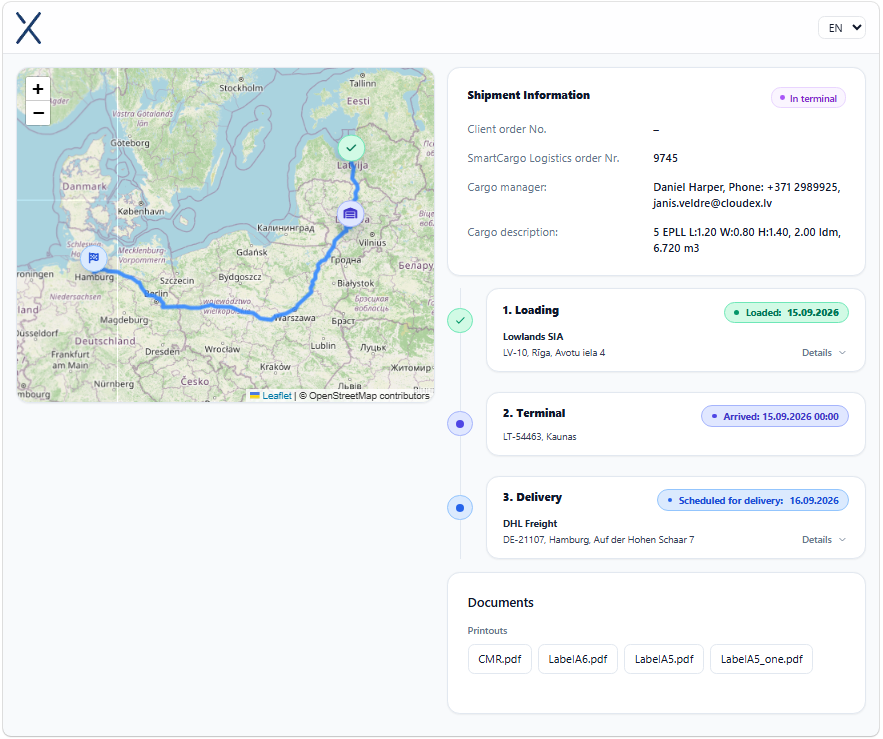
The email contains a unique Track & Trace link for the shipment. The client can open it to view the current shipment status and milestones, such as loading, arrival at a terminal, and delivery.
If the truck’s GPS or navigation system is connected to Cloudex TMS and location data is available, the client can also see the truck’s location on the map.
Common questions
Why is the email generated in the wrong language?
Check the language selected in the Client card.
How do I include the transport order document?
Choose Transport order to client from the email menu and check the selected attachments before sending.
Why is the truck’s location missing from Track & Trace?
Truck location is available only when the truck’s GPS or navigation system is connected to Cloudex TMS and provides location data.