
How to send automatic milestone and document request emails
Cloudex TMS can automatically request shipment updates and missing documents from the carrier during transport.
Instead of manually contacting the carrier to ask whether the cargo has been loaded or delivered, or to request a POD/CMR, Cloudex can send these requests automatically according to the planned loading and delivery dates.
The request emails are sent to the Carrier transport manager email.
The carrier receives a secure link to the shipment and does not need to log in to Cloudex TMS.
What can Cloudex request automatically?
Depending on your company settings, Cloudex can send the following requests:
Loading
Check loading details
Sent before the planned loading date.
The carrier can check or update:
- Planned loading date/time
- Truck/Trailer number
Confirm loaded
Sent on the planned loading date if loading has not yet been confirmed.
The carrier can:
- Confirm that the shipment has been loaded
- Update the Planned loading date/time if loading is delayed
- Update the Truck/Trailer number
When loading is confirmed, Cloudex records the Actual loading date/time.
Delivery
Check delivery plan
For longer transports, Cloudex can ask the carrier to check the delivery plan before the planned delivery date.
The carrier can update the Planned delivery date/time if the plan has changed.
For example, this request can be configured to be sent only when there are more than 2 days between the agreed loading and delivery dates.
Confirm delivered
Sent on the planned delivery date if delivery has not yet been confirmed.
The carrier can:
- Confirm that the shipment has been delivered
- Update the Planned delivery date/time if delivery is delayed
- Upload required delivery documents if they are already available
When delivery is confirmed, Cloudex records the Actual delivery date/time.
If documents are not yet available, they can be uploaded later.
Follow-up requests
If the carrier does not confirm delivery, Cloudex can automatically send follow-up requests.
For example:
- 1 day after the Planned delivery date
- 2 days after the Planned delivery date
Cloudex can also send reminders when delivery has already been confirmed but required documents are still missing.
Depending on the shipment, required documents can include:
- POD / CMR
- Pallet exchange document
- Other required shipment documents
Cloudex sends document reminders only while the required documents are still missing.
Enable automatic requests for a Trip/Spedition
Open the required Trip/Spedition.
In the carrier section, enable:
Automatic requests
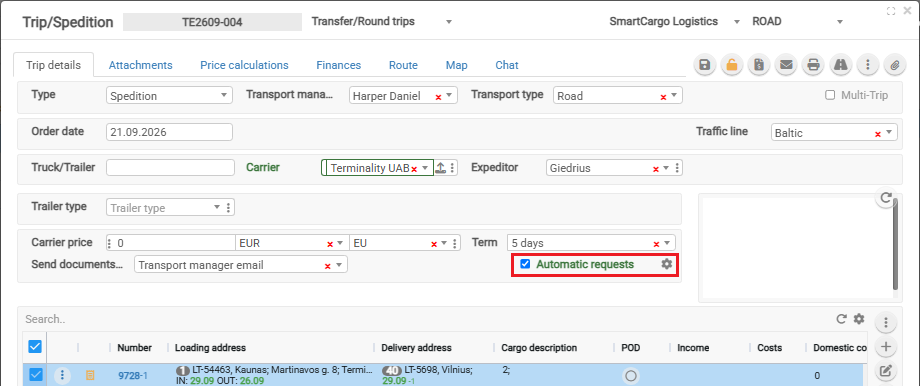
When this checkbox is selected, Cloudex can send automatic milestone and document requests for this Trip according to your company's Automatic email request settings.
Automatic milestone and document requests will be sent to the Carrier transport manager email.
The carrier must therefore have a valid Transport manager email.
The settings icon next to Automatic requests opens the company-level automatic request settings.
Automatic email request settings
The automatic request schedule is configured separately for each Cloudex company.
Open Automatic email request settings to define which requests should be sent and when.
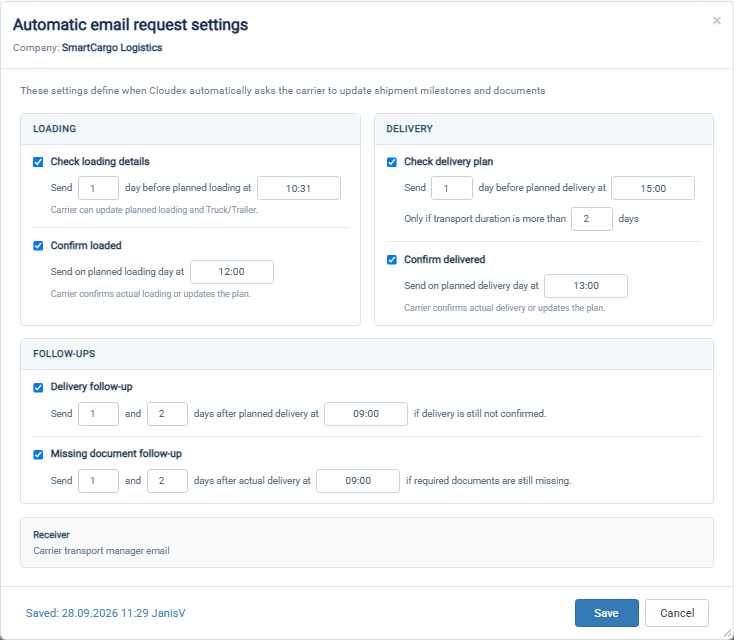
The settings include:
Loading
Check loading details
Example:
Send 1 day before planned loading at 15:00.
Confirm loaded
Example:
Send on planned loading day at 12:00.
Delivery
Check delivery plan
Example:
Send 1 day before planned delivery at 15:00.
Only if transport duration is more than 2 days.
Confirm delivered
Example:
Send on planned delivery day at 12:00.
Follow-ups
Delivery follow-up
Example:
Send 1 and 2 days after planned delivery at 09:00 if delivery is still not confirmed.
Missing document follow-up
Example:
Send 1 and 2 days after actual delivery at 09:00 if required documents are still missing.
The recipient is always:
Carrier transport manager email
These are company-level settings. You do not need to configure the schedule separately for every Trip.
What does the carrier receive?
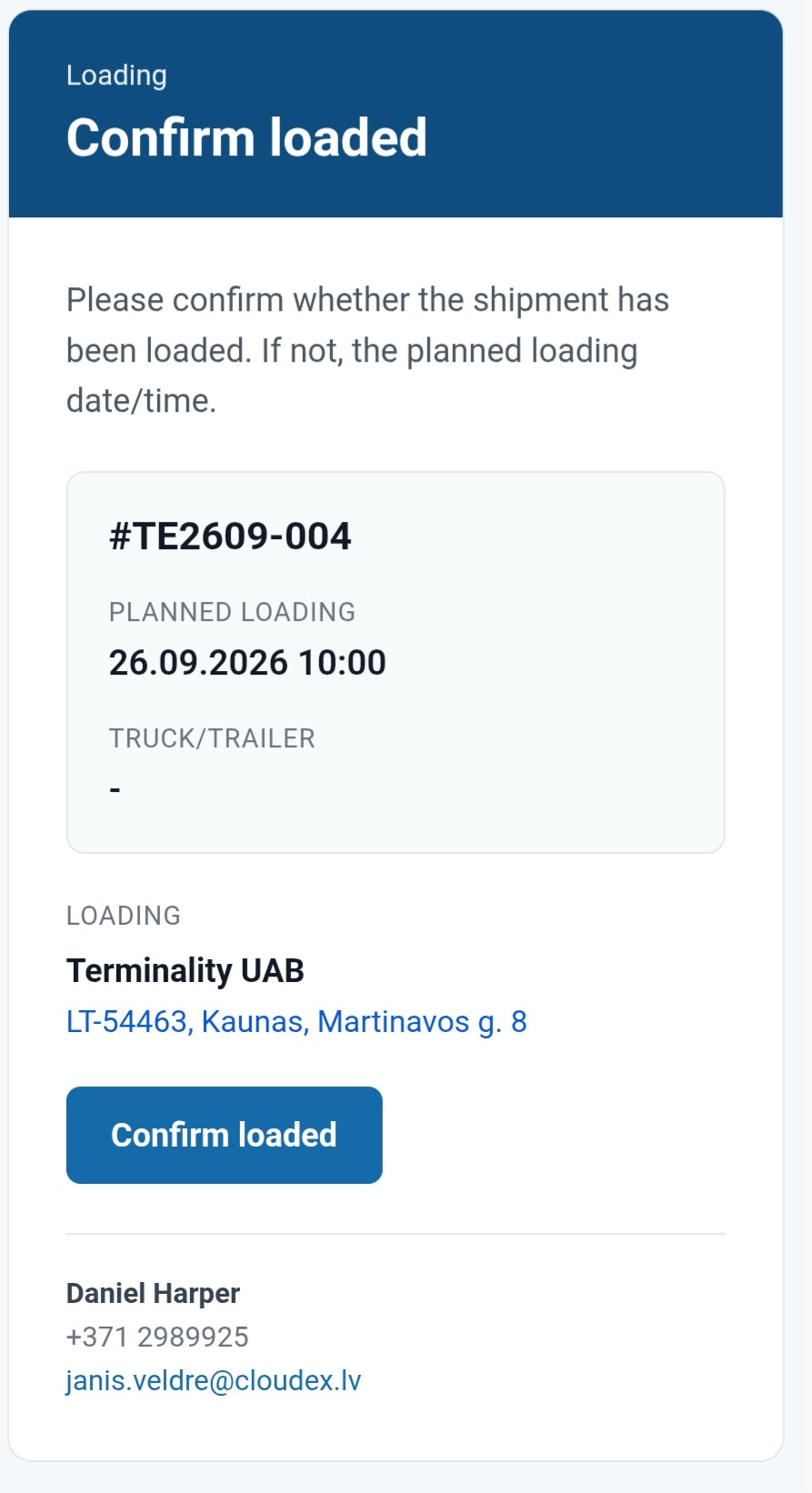
The carrier receives a simple email containing the shipment information and a button that opens the secure Cloudex shipment page.
Depending on the request, the carrier can:
- Update Planned loading or delivery
- Update Truck/Trailer
- Confirm loading
- Confirm delivery
- Upload POD/CMR and other required documents
No Cloudex TMS login is required.
Cloudex does not send a request if the requested action has already been completed. For example, if delivery has already been confirmed, Cloudex does not continue asking the carrier to confirm delivery.
Here is an example of an email that was viewed on a phone:
View sent automatic request emails
Open:
Client order → Sent Emails
The list shows all sent emails connected to that order, including automatic carrier request emails.
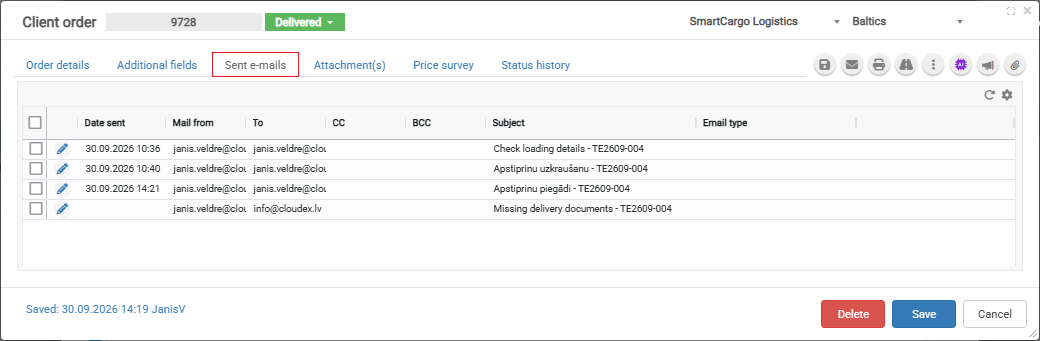
For example, you can see:
- Check loading details
- Confirm loaded
- Confirm delivered
- Missing delivery documents
- Other emails sent regarding the Client order
This makes it easy to verify what was sent, when it was sent, and to which email address.
Example workflow
A typical shipment could work like this:
-
1 day before loading
Cloudex asks the carrier to check Planned loading and Truck/Trailer. -
Loading day
Cloudex asks the carrier to confirm that the shipment has been loaded. -
Before delivery
For a longer transport, Cloudex asks the carrier to check the Planned delivery date/time. -
Delivery day
Cloudex asks the carrier to confirm delivery and upload available delivery documents. -
After delivery
If required documents are still missing, Cloudex sends document follow-up requests.
The forwarder therefore does not need to manually monitor every shipment date and repeatedly contact carriers for routine updates.