
How to set up an AI mailbox for incoming invoice reading
Cloudex TMS can use AI to read incoming invoice emails and automatically create Incoming invoices from the information and attachments received by email.
To use this functionality, first connect the email mailbox that Cloudex TMS should monitor for incoming invoices.
When to use
Set up an AI mailbox if you want Cloudex TMS to automatically process invoices received from carriers or other suppliers by email.
After the mailbox is connected, Cloudex TMS can process incoming emails, read invoice information using AI, and create Incoming invoices for further review and processing.
Before you start
You need:
- an email account that will receive incoming invoices;
- the email account login details;
- access rights to Cloudex TMS integration settings.
We recommend using a dedicated email address for invoices whenever possible, for example an address where carriers and suppliers send their invoices.
How to connect the AI mailbox
-
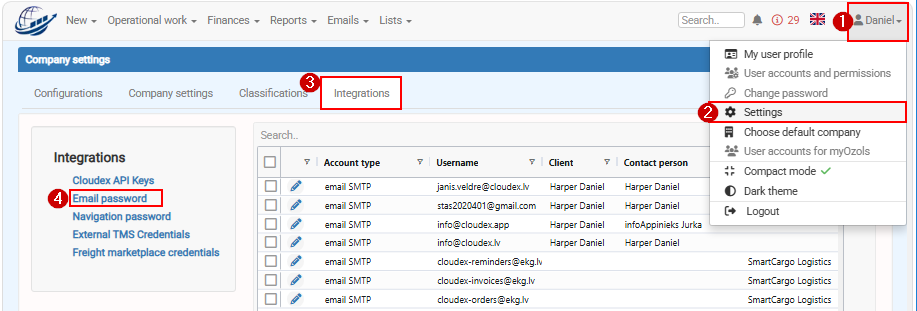
Go to:
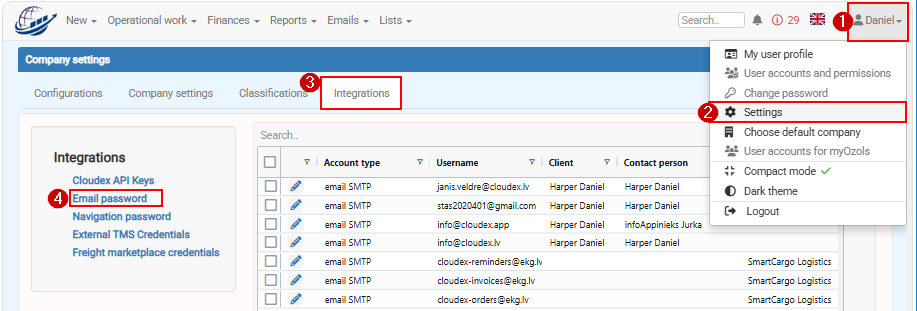
My profile → Settings → Integrations → Email password
2. Click New

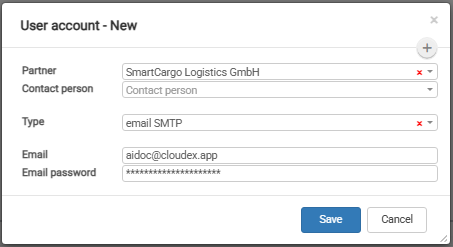
3. Enter the details of the email account that Cloudex TMS should use for AI invoice reading.
4. Check that the entered email account information is correct.
5. Click Save.
What happens after the mailbox is connected?
Incoming invoice emails received in the connected AI mailbox can be processed by Cloudex TMS.
AI can read information from the received invoice and use it to create an Incoming invoice in Cloudex TMS.
Email attachments are also added to the created Incoming invoice.
Important: AI-generated invoices should still be reviewed by a user before they are approved or used for further accounting processes. AI can interpret documents incorrectly or may not have enough information to identify all invoice details correctly.
Recommended next step
After setting up the mailbox, see:
How to work with Incoming invoices created by AI
This article explains how to review AI-generated invoices, check attachments, relate them to the correct Trip or Client order, and correct information when necessary.
Common problems
Cloudex TMS does not receive emails
Check that:
- the correct email account has been configured;
- the email login information is correct;
- invoices are actually being received in the configured mailbox.