
How to send a trip to the driver?
How to give a driver access to a trip using a link?
How to display a trip in the Cloudex Drive app?
How to create a Cloudex Drive password?
How
You tocan give a driver access to a trip usingin two ways:
1.link
This allows the driver to view trip information and enter the required information without you having to copy the trip details into messages.
Before you start
Make sure the trip has been created and its details are ready to share.
For Cloudex Drive, check that the correct driver and vehicle are assigned to the trip.
If the driver is using Cloudex Drive for the first time, configure the password as described below.
How to share a trip link with the driver
Open the trip list.
Select the desired trip fromyou thewant listto ofshare.
2. Open the Trip Window
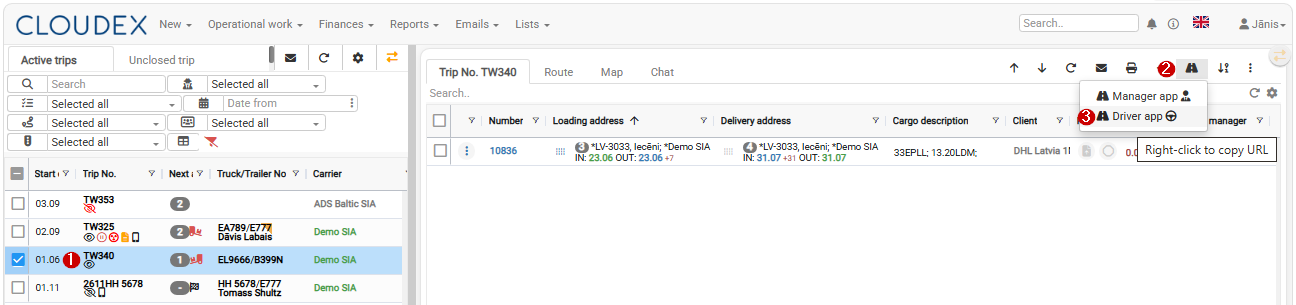
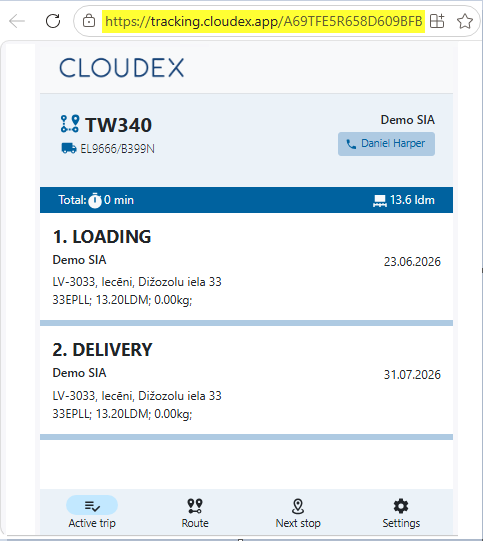
A window with the driver'driver’s web application for thethat trip willopens open.on a new browser page.
Copy the linkURL from the browser'browser’s address barbar.
Send the link to the driver via WhatsApp.
Result: The driver can completeopen the link to access the selected trip and enter the required information.
How to displaymake a trip visible in the Cloudex Drive (Driver) app?
1. SelectClick the Required Trip
Check that the correct driver and vehicle are assigned.
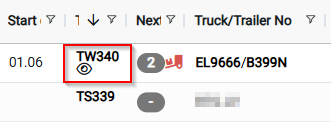
Activate the eye icon next to the driver’s name.
Result: The trip becomes available in the Cloudex Drive mobile app.
The trip remains in the list of active trips until its status changes to Delivered.
Important:
For the driver to be able to see the trip information:
- Activate the eye icon located next to the driver's name and surname.
- Once activated, the trip information will be sent to and become available in the Cloudex Drive mobile application.

The trip will remain visible in the list of active trips until its status is changed to Delivered.
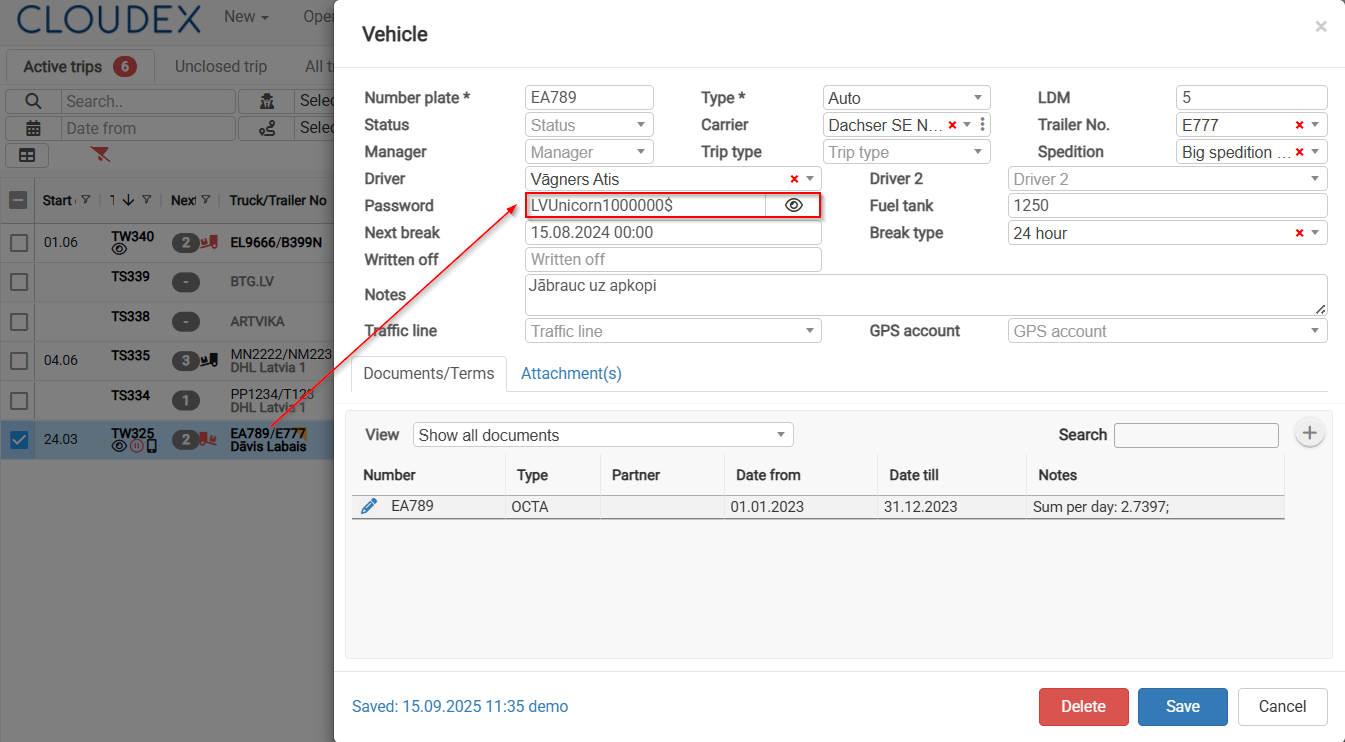
How to create a Cloudex Drive password?
1. Open the Vehicle Window
ClickonHow to set up a Cloudex Drive password
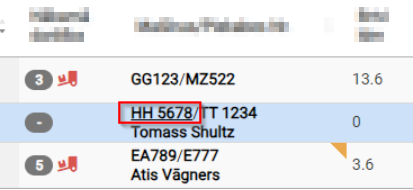
The Cloudex Drive password is configured in the Vehicle window.
-
Open the trip.
Click the vehicle registration number specifiedto inopen the trip.Vehicle window.
2.3. Create a Password
4. Save your
5.
Troubleshooting
The driver cannot see the trip in Cloudex Drive
Check that:
The correct driver and vehicle are assigned to the trip.
The eye icon next to the driver’s name is activated.
The trip’s status has not already been changed to Delivered.
The driver cannot sign in to Cloudex Drive
Open the relevant Vehicle window and check that a Cloudex Drive password has been configured. Make sure the driver is using the correct login details.
Which link should I send to the driver?
Select the trip in the trip list and click the road icon. Copy the URL from the driver’s web application that opens.
Why has the trip disappeared from the active trip list?
Check the trip’s status. A trip remains in the active trip list until its status changes to Delivered.