
How to send a trip to the driver?
How to give a driver access to a trip using a link?
How to display a trip in the Cloudex Drive app?
How to create a Cloudex Drive password?
How to give a driver access to a trip using a link?
1. Select the Required Trip
- Open the trip list menu.
- Select the desired trip from the list of available trips.
2. Open the Trip Window
- Click the road icon located in the toolbar.
- After clicking the road icon, the corresponding trip window will automatically open on a new page.

A window with the driver's web application for the trip will open.
- Copy the link from the browser's address bar and send it to the driver via WhatsApp so that the driver can complete the required information.

How to display a trip in the Cloudex Drive (Driver) app?
1. Select the Required Trip
- Click on the trip number to open the trip.
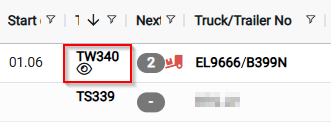
Important:
For the driver to be able to see the trip information:
- Activate the eye icon located next to the driver's name and surname.
- Once activated, the trip information will be sent to and become available in the Cloudex Drive mobile application.

The trip will remain visible in the list of active trips until its status is changed to Delivered.
How to create a Cloudex Drive password?
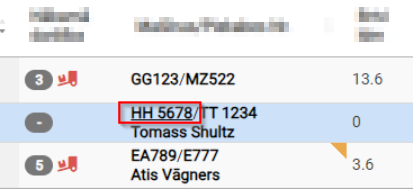
1. Open the Vehicle Window
- Click on the vehicle registration number specified in the trip.
- The Vehicle window will open.
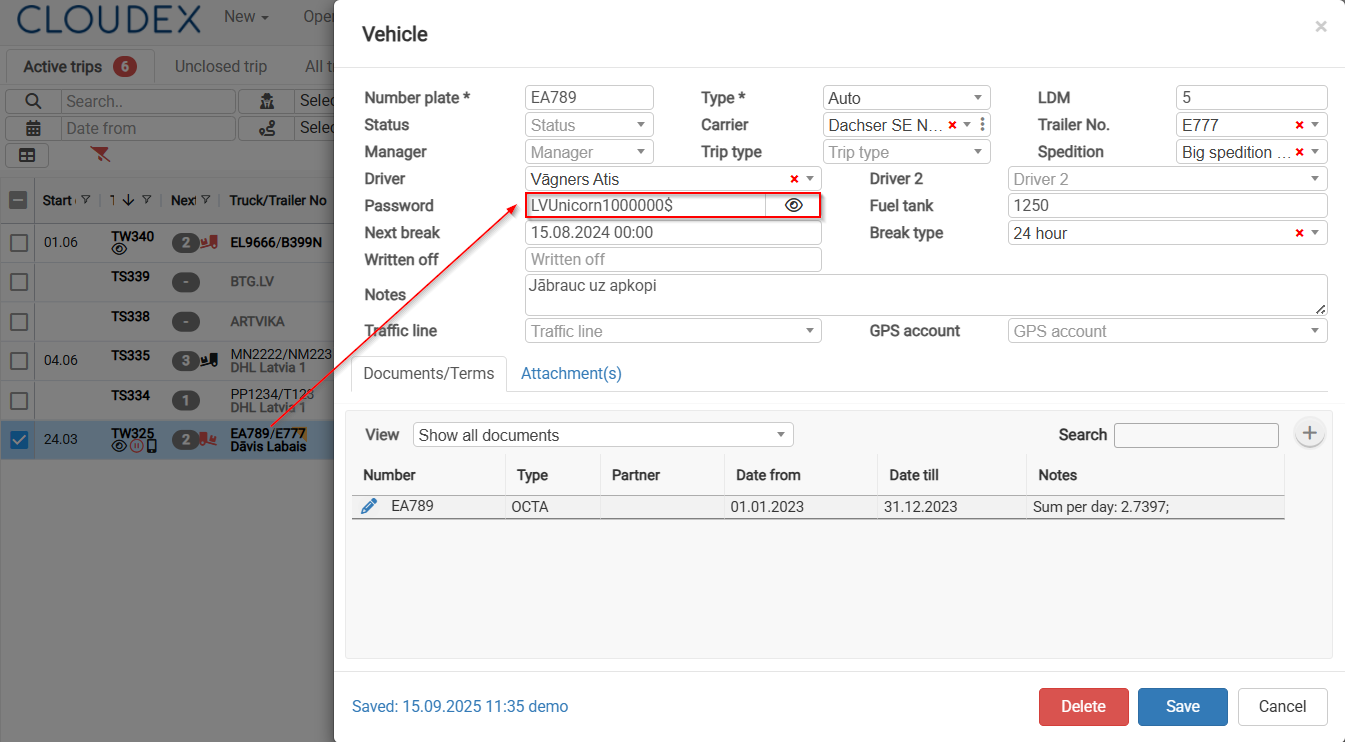
2. Create a Password
- Create a password of your choice.
- The driver will use this password to log in to the Cloudex Drive application.
No comments to display
No comments to display