
How to search, filter, and adjust the Client Orders list?
How to find client orders using Search?
Use the Search field to find client orders related to a specific company.
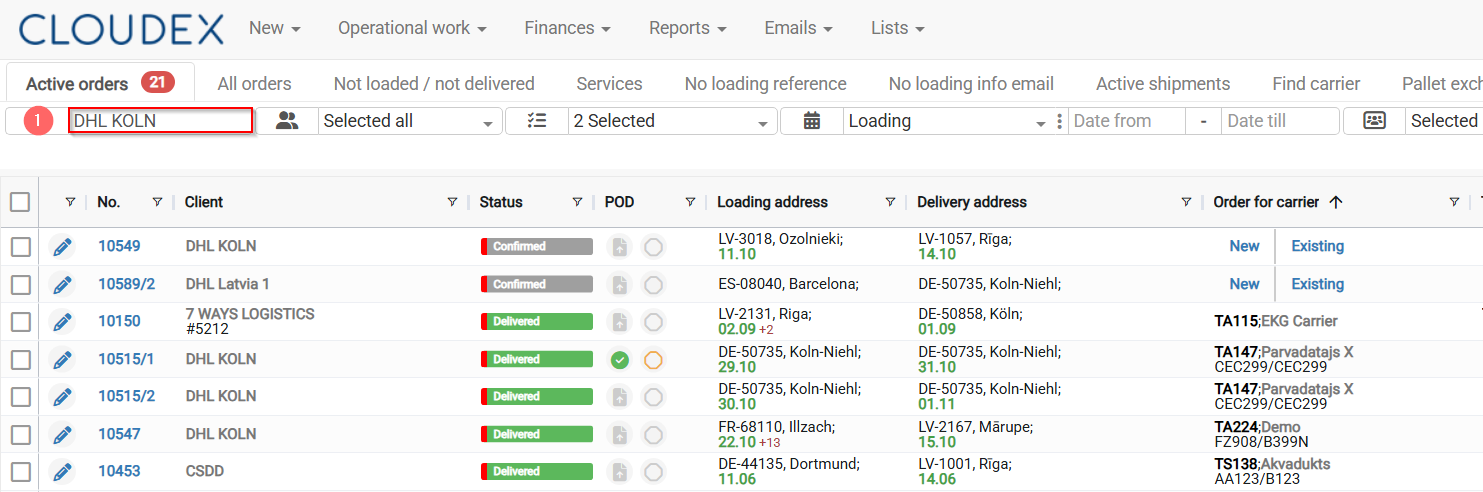
1. Enter the Company name in the Search field.
CLOUDEX TMS will show all orders where this company is used, for example as a supplier, recipient, sender, consignee, or another partner.
Check the number of found records next to the search result. The number 21 indicates that 21 records have been found.
How can I see more orders?
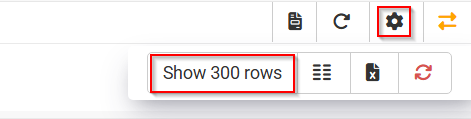
2. Change the number of rows displayed per page if you want to see more client orders on one screen. For example, if you choose 300 rows, a larger amount of data will immediately be visible on the screen, making it easier to analyze information without switching pages.
How to use the Client column filter?
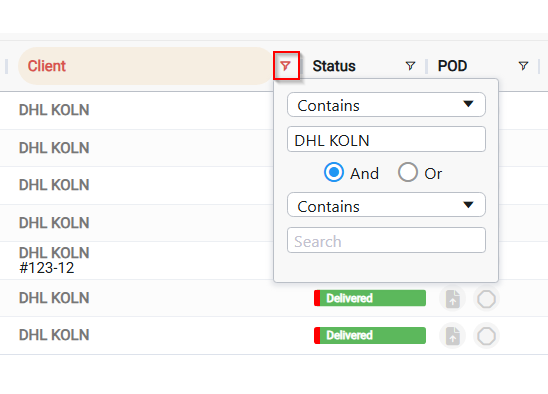
3. Use the Client column filter to show only orders related to one selected customer. This narrows the list to only the records related to that specific Client, excluding all others.

What is the difference between Search and Filters?
Search looks for matching records across the client order list. It is useful when you want to quickly find all orders related to a company or keyword.
Filters narrow the list by a specific column, for example Client, Status, POD, Delivery date, or Manager.
No comments to display
No comments to display